☰
Current Page
Main Menu
Home
Home
Editing Virtualdatasource
Edit
Preview
H1
H2
H3
default
Set your preferred keybinding
default
vim
emacs
markdown
Set this page's format to
AsciiDoc
Creole
Markdown
MediaWiki
Org-mode
Plain Text
RDoc
Textile
Rendering unavailable for
BibTeX
Pod
reStructuredText
Help 1
Help 1
Help 1
Help 2
Help 3
Help 4
Help 5
Help 6
Help 7
Help 8
Autosaved text is available. Click the button to restore it.
Restore Text
[[_TOC_]] ##Question What is a virtual data source? How do I create one, and what is it used for? ##Answer A virtual data source is an Izenda report which can be used as a data source. You can think of it as creating a simulated view, in Izenda. It can be used for multi-level calculated fields Virtual Data Sources can be used with direct database connections and with direct fusion connections against datasources (MsSql, Oracle, PostgreSQL), but will not work with MySQL due to lack of support of WITH. This feature is NOT compatible with OData datasources. If your environment is using VisibleDataSources to define or trim datasources, you might also experience difficulty getting virtual data sources to appear in the data source menu. Virtual data sources do not automatically update, they are cached based on the behavior of the underlying report - to update a VDS, you must update the report which is used to construct it. When VDS is enabled, data sources will appear as links on the data source menu. Each link shows a popup that displays the name of every report which is built using that data source. ###Step 1: Enable Virtualdatasource To use virtual data sources, you will have to change a setting in the global.asax. Set AdHocSettings.AllowVirtualDataSources = true; ####Code Sample ```csharp //main class: inherits DatabaseAdHocConfig or FileSystemAdHocConfig public class CustomAdHocConfig : Izenda.AdHoc.DatabaseAdHocConfig { // Configure settings // Add custom settings after setting the license key and connection string by overriding the ConfigureSettings() method public static void InitializeReporting() { //Check to see if we've already initialized. if (HttpContext.Current.Session == null || HttpContext.Current.Session["ReportingInitialized"] != null) return; AdHocSettings.LicenseKey = "INSERT_LICENSE_KEY_HERE"; //Creates a connection to Microsoft SQL Server AdHocSettings.SqlServerConnectionString = "INSERT_CONNECTION_STRING_HERE"; Izenda.AdHoc.AdHocSettings.AdHocConfig = new CustomAdHocConfig(); HttpContext.Current.Session["ReportingInitialized"] = true; AdHocSettings.AllowVirtualDataSources = true; //The relevant setting } ``` ###Step 2: Create Report A virtual data source is simply a typical Izenda report, except the output is used as a table for one or more other reports. Once the virtualdatasources setting is toggled to true, any report you already have or create has the potential to be used as a virtual data source. ###Step 3: Enable report as VDS On the Misc Tab, above the drilldown key dropdown there is a checkbox labeled "Expose as Datasource". Checking this box then saving the report will cause the report to appear in the data source menu. 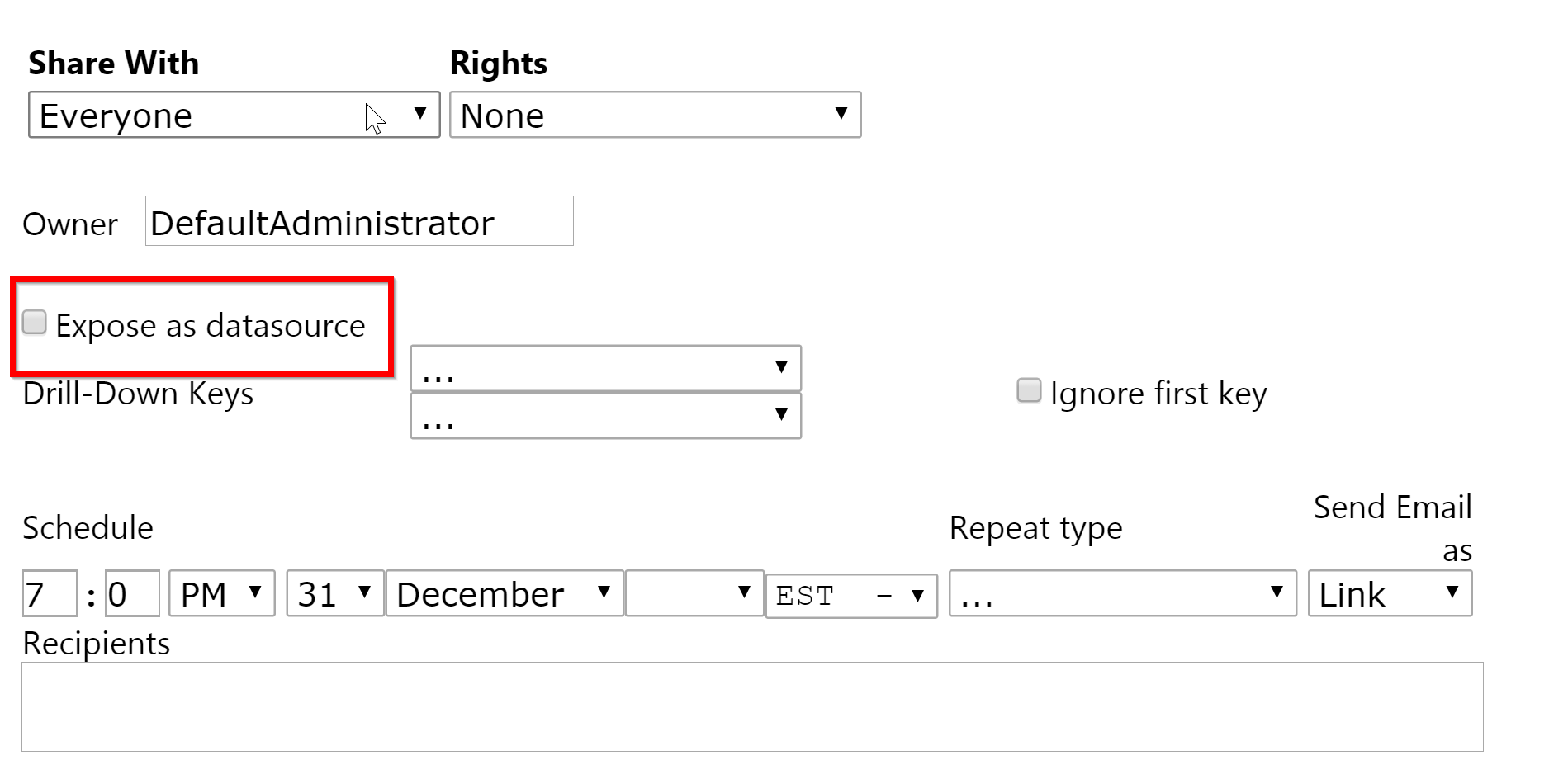 ###Step 4: Use VDS in new report When you create a new report, the data sources menu should include the full report name of the report which you just saved as a VDS. You may now build a report based on the output of the VDS report. 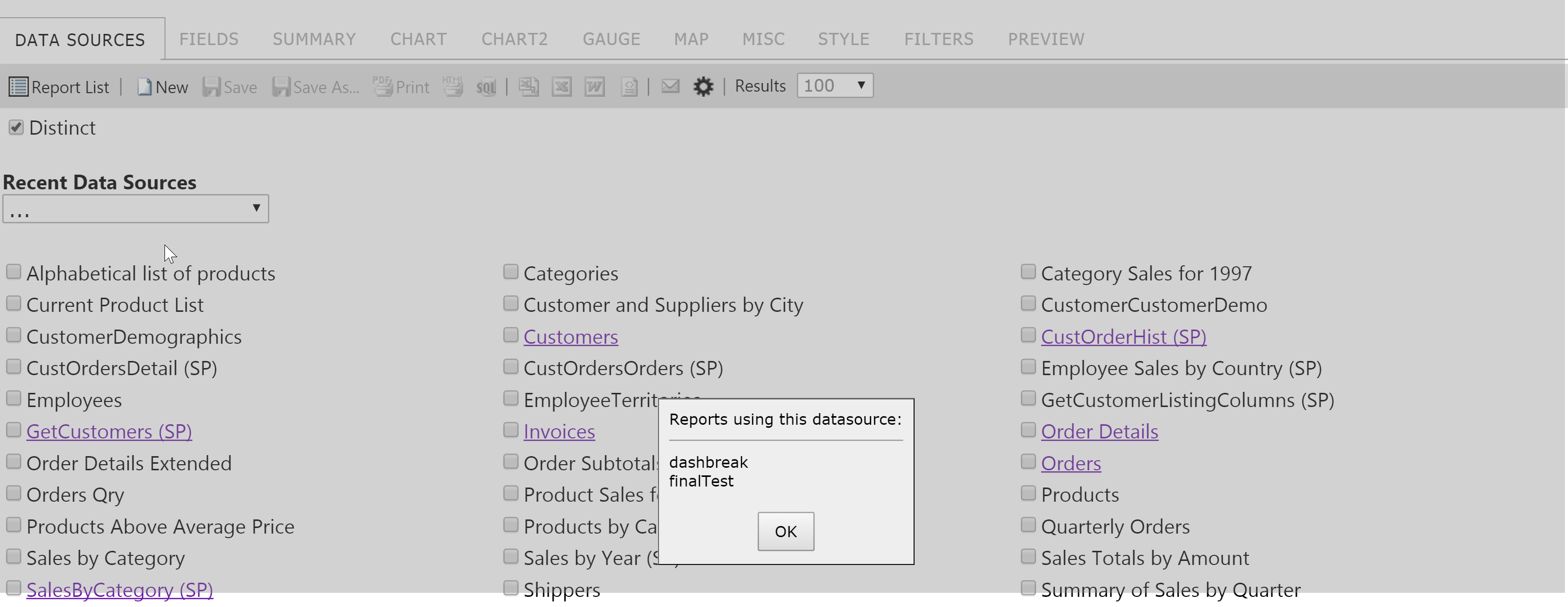
Uploading file...
Header
 **This documentation is for the legacy Izenda 6 product. Documentation for the new Izenda 7 product can be found at [[https://www.izenda.com/docs/|https://www.izenda.com/docs/]]**
Sidebar
 --- * [[Izenda 7 Series Documentation|https://www.izenda.com/docs/]] * [[Release Notes]] * [[Upgrade Best Practices|FAQ/Izenda-Update-Best-Practices]] * [[FAQ]] * [[Tutorials]] * [[The Izenda API|/API/AdHocConfig]] * [[The AdHocSettings class|/API/AdHocSettings]] * [Developer Links and Guides](/Guides/Developer-Links-and-Guides) * [[Known Issues]] --- * <a href="http://www.izenda.com" rel="nofollow" target="_blank">Izenda Website</a> * [Product Video](https://www.youtube.com/watch?v=X3-yWFq0w5A) * <a href="http://www.izenda.com/blog" rel="nofollow" target="_blank">Izenda Blog</a> * <a href="http://www.izenda.com/company/" rel="nofollow" target="_blank">About Us</a> * <a href="http://www.izenda.com/contact-us/" rel="nofollow" target="_blank">Contact Us</a> --- * [Guide To Report Design](/Guides/ReportDesign) * [Making Custom Forms Video](http://www.youtube.com/watch?v=5b2axJlgdFs) --- * [[Acknowledgements]]
Edit message:
Cancel