☰
Current Page
Main Menu
Home
Home
Editing Navigation
Edit
Preview
H1
H2
H3
default
Set your preferred keybinding
default
vim
emacs
markdown
Set this page's format to
AsciiDoc
Creole
Markdown
MediaWiki
Org-mode
Plain Text
RDoc
Textile
Rendering unavailable for
BibTeX
Pod
reStructuredText
Help 1
Help 1
Help 1
Help 2
Help 3
Help 4
Help 5
Help 6
Help 7
Help 8
Autosaved text is available. Click the button to restore it.
Restore Text
#**Navigation** [[_TOC_]] ###Introduction Navigation can be customized globally, for all users, by using the settings.aspx page. It can also be customized on a per-user basis. The two pages which are generally affected most by navigation are the report viewer and the report list. ###Report List Navigation The Reports List page can be completely re-written if you choose. You use the AdHocSettings.AdHocConfig class to return a list of filtered reports, which could then be put into a table or any other html format. The query string format for the links to point to the other pages is as follows, where ReportName is the actual report name from the filtered reports list: * Report Viewer links: ReportViewer.aspx?rn=ReportName * Report Designer links: ReportDesigner.aspx?rn=ReportName&tab=Fields By creating a page with these links, you can completely control the Report List navigation. You can also display buttons or other links which further control navigation or integration with your product. ###Report Viewer Navigation Using Query String Parameters The report viewer provides the ability to give links to the users which are generated as reports. This means that you can provide a link to a user and when that link is clicked upon, a report will automatically generate in the needed format and a Download load file dialog will appear. The user does not need to be taken to the page in a browser. The following output types are supported: * Portable Document Format (pdf): "&output=pdf" * Sample link [[http://www.izenda.com/bi/ReportViewer.aspx?rn=Product+List&output=pdf]] * Microsoft Excel Format: "&output=xls" * Sample link [[http://www.izenda.com/bi/ReportViewer.aspx?rn=Product+List&output=xls]] * Microsoft Word Format: "&output=csv" * Sample link [[http://www.izenda.com/bi/ReportViewer.aspx?rn=Product+List&output=csv]] * XML Format: "&output=xml" * Sample link [[http://www.izenda.com/bi/ReportViewer.aspx?rn=Product+List&output=xml]] * RTF Format: "&output=rtf" * Sample link [[http://www.izenda.com/bi/ReportViewer.aspx?rn=Product+List&output=rtf]] ###Simple Mode Simple Mode disables the ability in the Report Viewer to load another report, export the report, or add fields and filters to the report. If there are existing filters it allows the ability to change the current filter. * Simple Mode Format: "&simple=1" * Sample link [[http://www.izenda.com/bi/ReportViewer.aspx?rn=Department+Reports/Dashboard&simple=1]] ###Izenda Reports supports at most 5 query string parameters It is also possible that you may want to pass a query string to Izenda which has a filter field parameter already set for the user. To accomplish this you can use the p1value, p2value, p3value, p4value, and p5value parameters. Each of the parameters corresponds to the actual order of filters on the report viewer page. So in this example we see the filter field labels in red next to the filters. Call the filters using the following naming convention: 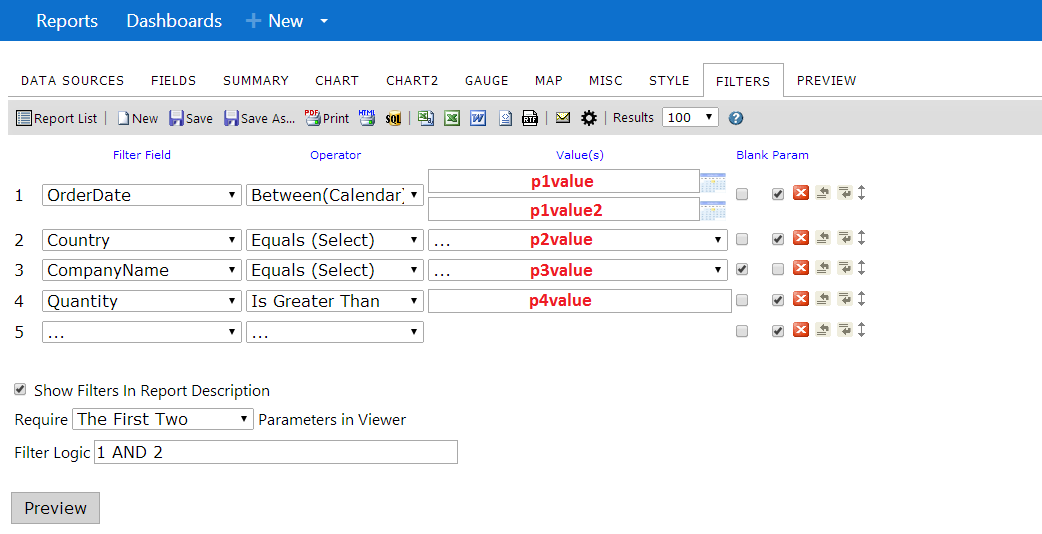 **Note: The values in "Red" (p1value, etc.) above are for reference to the information below only. The Value(s) spaces need to remain "Blank" in the Report Designer. * **p1value,p1value2**: "Between" filter operator, ReportViewer.aspx?rn=SomeReport&p1value=1/1/2005&p1value2=1/1/2008 * **p2value**: "Equals" filter operator,ReportViewer.aspx?rn=SomeReport&p2value=USA * **p3value**: "Equals" filter operatorReportViewer.aspx?rn=SomeReport&p3value=SomeCompany * **p4value**: "Greater Than" filter operatorReportViewer.aspx?rn=SomeReport&p4value=15 * **p5value**: not used in this example (maximum amount of parameters reached) *Note: p1value2 is only valid due to using the "Between" operator and would not be valid when working with other operators.* You can combine filters together and add an output type. Examine this example: * ReportViewer.aspx?rn=Product+List&p1value=1/1/2005&p1value2=1/1/2008&p2value=USA&output=pdf ###Get just the report All of the above commands can also be accomplished by replacing ReportViewer.aspx with rs.aspx and appending the appropriate query string. This will generate the same report seen in ReportViewer.aspx but without any of the menu items.
Uploading file...
Header
 **This documentation is for the legacy Izenda 6 product. Documentation for the new Izenda 7 product can be found at [[https://www.izenda.com/docs/|https://www.izenda.com/docs/]]**
Sidebar
 --- * [[Installing Izenda on Windows Server|http://wiki.izenda.com/Guides/Installing-Izenda]] * [[Installing Izenda on Mac|/Guides/Mac-Install]] * [[Connecting to the Database|/Integration/Tutorials/connect-to-the-database]] * [[User Guides|http://wiki.izenda.com/Guides/ReportDesign]] * [[Developer Guides|Guides/Developer Links and Guides]] --- * [Izenda Website](http://www.izenda.com) * [Product Video](http://www.izenda.com/Site/Video/ProductVideo.aspx) * [Izenda Blog](http://www.izenda.com/blog) * [Company Page](http://www.izenda.com/company) * [Gallery](http://www.izenda.com/izenda-vision/) * [Client List](http://www.izenda.com/case-studies/) * [Contact Page](http://www.izenda.com/contact-us/) * [Knowledge Base](http://www.izenda.com/Site/KB/Integration/94) --- * [[Acknowledgements]]
Edit message:
Cancel