☰
Current Page
Main Menu
Home
Home
Editing Driver-Page-Back-up-07102015
Edit
Preview
H1
H2
H3
default
Set your preferred keybinding
default
vim
emacs
markdown
Set this page's format to
AsciiDoc
Creole
Markdown
MediaWiki
Org-mode
Plain Text
RDoc
Textile
Rendering unavailable for
BibTeX
Pod
reStructuredText
Help 1
Help 1
Help 1
Help 2
Help 3
Help 4
Help 5
Help 6
Help 7
Help 8
Autosaved text is available. Click the button to restore it.
Restore Text
#Izenda AdHoc Driver [[_TOC_]] ##The AdHoc Driver class Izenda reports is designed as a modular system to be easily customizable for usage with any datasources. The ``AdHocContext`` class has a **Driver** property containing an instance of the ``Izenda.AdHoc.Database.Driver`` abstract class, which provides datasource metadata for Izenda AdHoc. All datasource drivers in Izenda AdHoc use this as their base class and layer functionality on top of it. 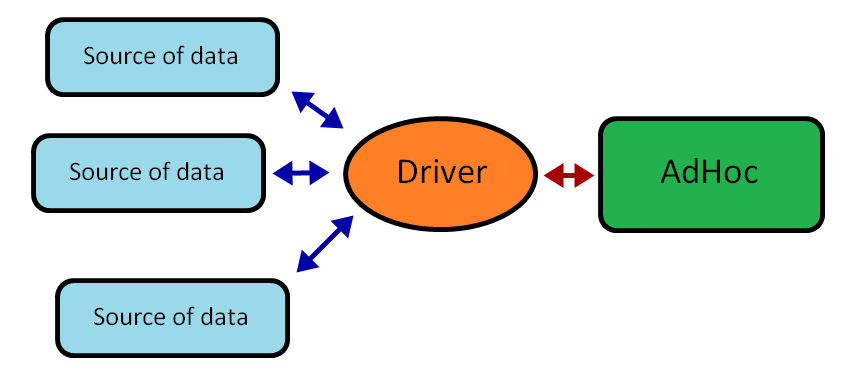 **Figure 1:** The standard Izenda Driver model. Datasources are separate and the driver handles the heavy lifting of interacting with the datasources. ###Customizing the Izenda AdHoc Driver The ``Izenda.AdHoc.Database.MSSQLDriver`` class implements complete functionality for using MSSQL server as your datasource and also allows you to create inheritors. So the easiest way to create a custom driver working with MSSQL server is to inherit ``Izenda.AdHoc.Database.MSSQLDriver`` and override the functionality you need to work differently. Below are complete instructions detailing how to perform this: **1.** Create new project with type of Class library in Visual Studio.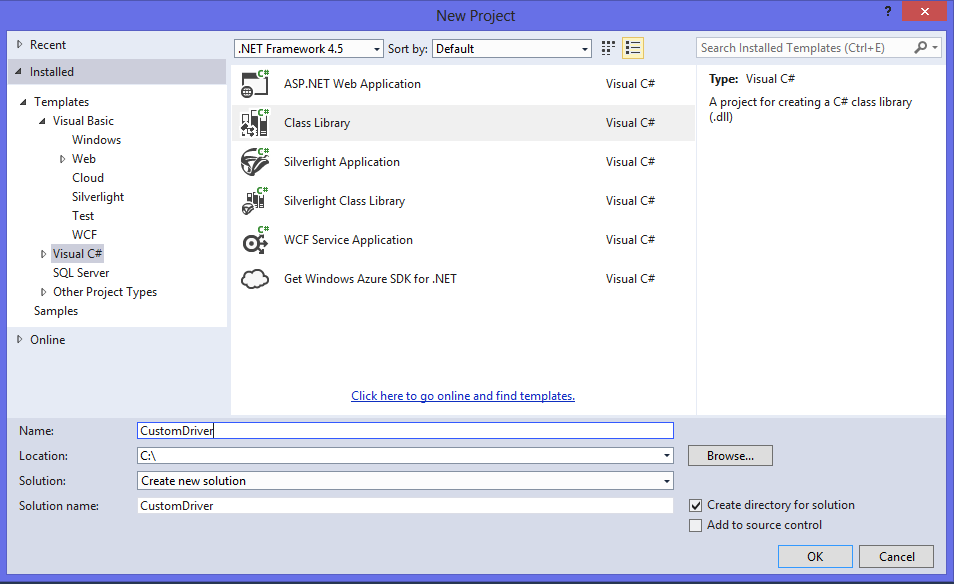 **2.** Add Izenda.AdHoc.dll to the References in the project.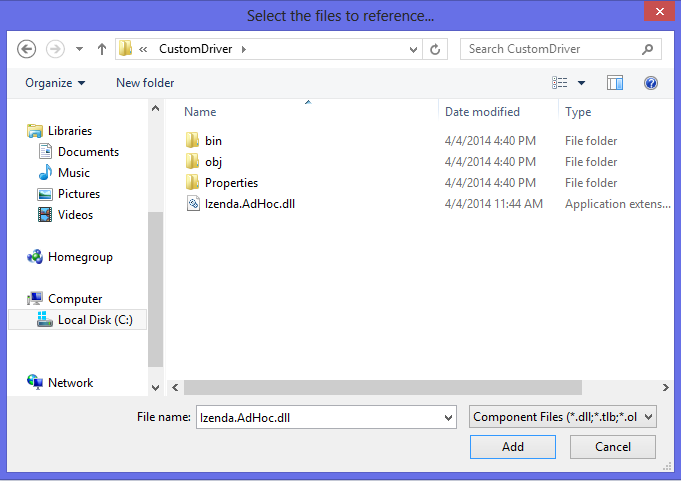 **3.** Create new class and inherit MSSQLDriver: ```csharp using Izenda.AdHoc.Database; namespace CustomDriver { public class MyCustomDriver : MSSQLDriver { } } ``` **4.** Now any metadata drilling functionality can be altered. Here we will implement overriding of two most important methods, assuming that we have a single custom source of data. For our example, we will assume the table **Products** exists with three fields: **Id**, **Name**, and **Price**: **a)** ``GetAllTables()`` returns an array of ``Izenda.AdHoc.Database.Table`` which will be available in the DataSources tab in the ReportDesigner as a list of datasources. Here is a short example of overriding this method: ```csharp public override Table[] GetAllTables() { Table[] result = new Table[1]; result[0] = new Table("Products"); return result; } ``` **b)** GetColumns returns an array of Izenda.AdHoc.Database.Column for the given table. This array is used as fields list at several tabs in the ReportDesigner. Again, short example of overriding this method: ```csharp public override Column[] GetColumns(Table table) { if (table.Name == "Products") { Column[] result = new Column[3]; result[0] = new Column("ProductID", SqlType.UInt32); result[1] = new Column("ProductName", SqlType.VarChar); result[2] = new Column("UnitPrice", SqlType.SqlMoney); } else { throw new Exception("Unknown DataSource"); } } ``` The overridden fields can be seen in the Fields tab on the Report Designer after selecting the DataSource "Products" at the DataSources tab. **5.** Include a reference to your ``CustomDriver`` to your website. To perform this, the following steps should be taken: **a)** Compile your ``CustomDriver`` project and copy the assembly to your website's /bin folder, and add the reference just like above. **b)** Set ``AdHocContext.Driver = new CustomDriver`` in the ``Session_Start()`` or ``Application_Start()`` method. **6.** You must also override some other methods like ``GetDataSet()``. This method accepts a ``System.Data.IDBCommand`` parameter, and returns the corresponding DataSet. Overriding this method allows you to pre-process the dataset before returning it. You may use ``AdHocContext.CurrentReportSet`` to get additional details of the report. For integrations that will not utilize SQL queries in the command object, ``Izenda.AdHoc.AdHocContext.CurrentReportSet`` may be used to get the report state. To override this method, simply add following method to the MyCustomDriver class: ```csharp public override DataSet GetDataSet(IDbCommand Command) { DataSet result; result = base.GetDataSet(command); //If you want the driver to obtain DataSet and process it before returning //result = new DataSet(); //If you want to implement your own method for obtaining a DataSet. //more processing.... return result; } ``` You can also see more coding examples [[here|http://wiki.izenda.com/API/CodeSamples]]. ##Izenda Fusion Driver The Izenda Fusion Driver composes data sources from several connections (data providers) into a single data source. This is very similar to how [[SSAS|http://technet.microsoft.com/en-us/library/ms175609(v=sql.90).aspx]] works, but using Fusion you can aggregate data not only from MSSQL databases but from very different data sources. For example, you can get data from the [[OData|Guides/OData]] data provider (i.e. without a direct connection to the database). All you need to do is set up the data sources' connections and you will be able to work with aggregated data as a single data source. 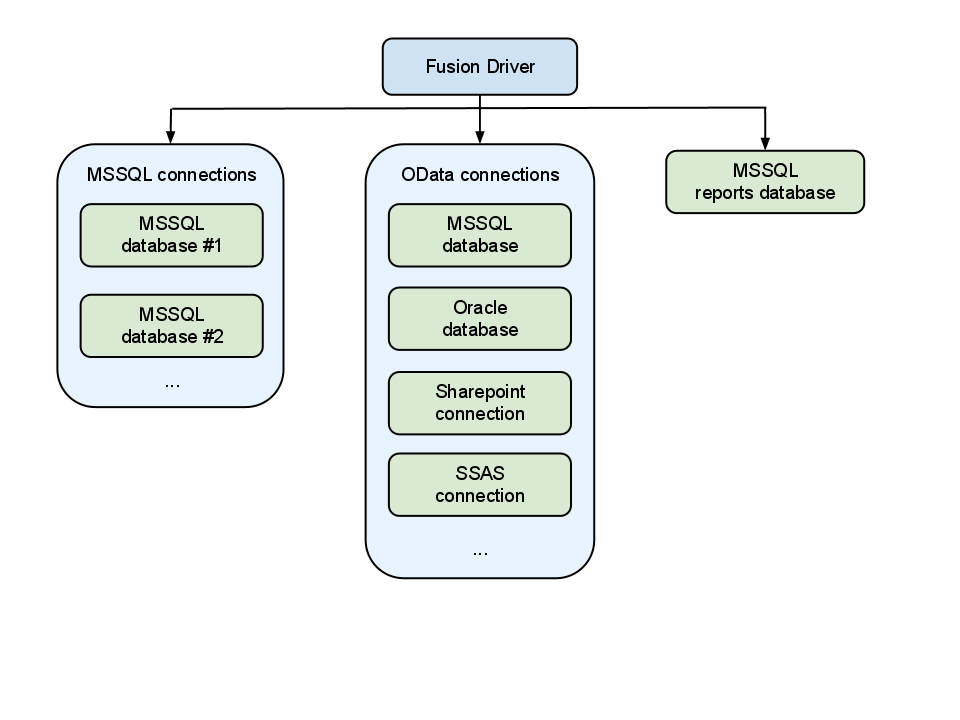 **Figure :** Schematics of how the Fusion Driver interacts with different datasources. Instead of working with individual datasources, it aggregates the datasources into one. ###Configuring the Izenda Fusion Driver Configuring the Izenda Fusion Driver is almost the same as configuring the Izenda Driver with single connection. The main differences are: * Allows you to set up more then one data source end point * Allows you to set up database constraints separately for each connection * Needs to use additional connection strings for the AdHoc table if your reports are stored in your database Configuring the Izenda Fusion Driver consists of several steps: ####1. Create the Fusion Driver At first you should create FusionDriver object and set up it as default driver for the Izenda AdHoc. Here is example how to do it in C#: ```csharp FusionDriver fusionDriver = new FusionDriver(); AdHocContext.Driver = fusionDriver; ``` ####2. Add connections to the driver Now you can add connections to the data sources end points. The end point could be a direct connection to the MSSQL database or it can be an OData connection to the MSSQL or Oracle database. #####a) Adding a direct and indirect database connection using the Fusion Driver: You can use the standard SqlServerConnectionString to connect to your database directly and also use the FusionDriver's capabilities to connect to an indirect database connection (like OData) at the same time: ```csharp AdHocSettings.SqlServerConnectionString = "my_first_connection_string"; Izenda.Fusion.FusionDriver.AddSqlConnection("SqlNW", @"my_second_connection_string"); Izenda.Fusion.FusionDriver.AddODataConnection("OD", @"http://...aspx"); ``` #####b) Adding multiple indirect data connections. You can use the FusionDriver to add multiple indirect database connections to your Driver's context: ```csharp //only for direct connections //AdHocSettings.SqlServerConnectionString = "my_direct_connection_string"; Izenda.Fusion.FusionDriver fd = new Izenda.Fusion.FusionDriver(); fd.AddConnection("SqlNW", Izenda.Fusion.FusionConnectionType.MsSql, @"http://url_to_sql_connector.com/provider_endpoint.aspx"); fd.AddConnection("OD", Izenda.Fusion.FusionConnectionType.OData, @"http://url_to_odata_connector.com/provider_endpoint.aspx"); fd.AddConnection("OD2", Izenda.Fusion.FusionConnectionType.OData, @"http://url_to_odata_2_connector.com/provider_endpoint.aspx"); AdHocSettings.AdHocContext.Driver = fd; ``` ####3. Set up additional settings The Izenda Fusion Driver has several additional settings: #####a) VisibleDataSources When using a FusionConnection with indirect database connections such as OData, the setup for VisibleDataSources is a little bit different. You will see an example below of setting up VisibleDataSources with indirect connections. ```csharp AdHocSettings.VisibleDataSources = new string[] { "Orders", "Customers", "Order Details" }; fusionDriver.FixVisibleDataSources(); ``` _**Note:** This does NOT apply to direct database connections. However, calling FixVisibleDataSources with direct database connections will not have any adverse effects on your VisibleDataSources._ #####b) Constraints This is setup the same as for a single connection except that you are able to specify separate constraints for each connection by using connection aliases. Note that you can use wildcard characters to set up constraints: **Example 1:** Static context ```csharp Izenda.Fusion.FusionDriver.AddConstraintSimple("OD/Order.Id", "OD/*.OrderID"); Izenda.Fusion.FusionDriver.RemoveConstraintSimple("OD2/Account.Id", "OD2/User.AccountID"); ``` **Example 2:** reference context ```csharp Izenda.Fusion.FusionDriver fd = new FusionDriver(); fd.AddConstraint("OD/Order.Id", "OD/*.OrderID"); fd.AddConstraint("OD2/Account.Id", "OD2/User.AccountID"); ``` #####c) Saving Reports with Fusion When using indirect database connections and saving your reports to the FileSystem is not an option, you can use the SavedReportsDriver setting to specify a direct link to a database where you can store your reports. The following example sets up the connection string to the database that contains the reports table. If you store reports in the file system then skip this step(use FileSystemAdHocConfig if you do this). ```csharp ((DatabaseAdHocConfig)AdHocSettings.AdHocConfig).SavedReportsDriver = new MSSQLDriver("your_mssql_direct_database_connection_string"); ``` #####d) Set up cache Getting data from several data source providers may take a lot of time and resources when many connections are added. This will result in a slow connection to the providers due to large amount of data being transferred, etc. That’s why the cache is enabled by default for the Izenda Fusion Driver. By default, cache expiration time is set to 12PM on Saturday. This means that every Saturday, the cache will be cleared and all data will be requested from the providers during the next session. You can configure the cache yourself by using the following properties and methods: * **DataCacheExpiration:** Sets the date for cache expiration. All data in the cache older than the specified date will be cleared (removed from the cache). For example, if you want to clear all data more than two days old, you should set: ``AdHocSettings.DataCacheExpiration = DateTime.Now.AddDays(-2);`` * **CacheReports method:** Indicates that all reports should or should not be cached (enabled by default in later versions of Izenda): ``AdHocSettings.CacheReports = true;`` * **DataCache Interval:** Sets the number of seconds between cache refreshes. Example: ``AdHocSettings.DataCacheInterval = 60 * 24 * 30;`` ###Sample use Now that we have covered the basics of setting up the Fusion driver, below is a full example of how to set up and configure the Izenda Fusion Driver with several connections: ####SQL/Oracle/MySql data connection The following example describes the process for initializing a FusionDriver connection when you have direct access to a SQL/Oracle/MySQL database where you want to store your reports. This database **does not** have to be the same database you obtain your schema from. Your CustomAdHocConfig class can inherit from either [[DatabaseAdHocConfig|http://wiki.izenda.com/FAQ/Storing-Reports#Database-Mode]] or [[FileSystemAdHocConfig|http://wiki.izenda.com/FAQ/Storing-Reports#File-System-Mode]] in this case: ```csharp <%@ Application Language="C#" %> <%@ Import Namespace="System.Data"%> <%@ Import Namespace="Izenda.AdHoc.Database"%> <%@ Import Namespace="Izenda.AdHoc" %> <%@ Import Namespace="System.Configuration" %> <script runat="server"> [Serializable] //If SavedReportsDriver is set, you can use DatabaseAdHocConfig or FileSystemAdHocConfig public class CustomAdHocConfig : Izenda.AdHoc.DatabaseAdHocConfig //Izenda.AdHoc.FileSystemAdHocConfig { public static void InitializeReporting() { // Set license key. Note: "+FUSION" must be in license key AdHocSettings.LicenseKey = "LICENSE KEY"; // Set config. Note: config class must derive from FusionAdHocConfig or FileSystemAdHocConfig AdHocSettings.AdHocConfig = new CustomAdHocConfig(); // Create Fusion driver and set it as default driver for AdHoc Izenda.Fusion.FusionDriver fusionDriver = new Izenda.Fusion.FusionDriver(); //Initialize the connections on the driver fusionDriver.AddConnection("SqlNW", Izenda.Fusion.FusionConnectionType.MsSql, @"http://url_to_odata_connector.com/provider_endpoint.aspx"); fusionDriver.AddConnection("OrclNW", Izenda.Fusion.FusionConnectionType.Oracle, @"http://url_to_odata_connector.com/provider_endpoint.aspx"); // Configure constraints for connections fusionDriver.AddConstraint("SqlNW/Order.Id", "SqlNW/*.OrderID"); fusionDriver.AddConstraint("OrclNW/Account.Id", "OrclNW/User.AccountID"); //set the Driver object AdHocContext.Driver = fusionDriver; // Clear cache AdHocSettings.DataCacheExpiration = DateTime.Now; // Cache reports for less database load AdHocSettings.CacheReports = true; // Set connection to the database with reports table ((DatabaseAdHocConfig)AdHocSettings.AdHocConfig).SavedReportsDriver = new MSSQLDriver(@"your_mssql_direct_database_connection_string"); // Add visible data sources AdHocSettings.VisibleDataSources = new string[] { "Orders", "Customers", "Order Details" }; //clean up the DataSources fusionDriver.FixVisibleDatasources(); } } </script> ``` ####OData connection The following example describes the process for initializing a FusionDriver connection when you have indirect data connections, such as OData: ```csharp <%@ Application Language="C#" %> <%@ Import Namespace="System.Data"%> <%@ Import Namespace="Izenda.AdHoc.Database"%> <%@ Import Namespace="Izenda.AdHoc" %> <%@ Import Namespace="System.Configuration" %> <%@ Import Namespace="Izenda.Fusion" %> <script runat="server"> [Serializable] public class CustomAdHocConfig : Izenda.AdHoc.FileSystemAdHocConfig //DatabaseAdHocConfig You can use either FileSystemAdHocConfig or DatabaseAdHocConfig because we set the SavedReportsDriver below { public static void InitializeReporting() { // Set license key. Note: "+FUSION" must be in license key AdHocSettings.LicenseKey = "LICENSE KEY"; // Set config. Note: config class must derive from FusionAdHocConfig or FileSystemAdHocConfig AdHocSettings.AdHocConfig = new CustomFusionAdHocConfig(); // Add visible data sources AdHocSettings.VisibleDataSources = new string[] { "Orders", "Customers", "Order Details" }; //Add connections to the driver (static context) FusionDriver.AddODataConnection("OD", FusionConnectionType.OData, @"http://your_odata_schema_url"); FusionDriver.AddODataConnection("OD2", FusionConnectionType.OData, @"http://your_odata2_schema_url"); // Configure constraints for connections FusionDriver.AddConstraintSimple("OD/Order.Id", "OD/*.OrderID"); FusionDriver.AddConstraintSimple("OD2/Account.Id", "OD2/User.AccountID"); // Clear cache AdHocSettings.DataCacheExpiration = DateTime.Now; // enable caching (on later versions of Izenda this is enabled by default) AdHocContext.CacheReports = true; // Set connection to the database with the reports table. You CANNOT use an OData connection as your SavedReportsDriver connection string ((FusionAdHocConfig)AdHocSettings.AdHocConfig).SavedReportsDriver = new MSSQLDriver("server=(local);database=ReportsDB;Trusted_Connection=True;"); } } </script> ``` ##CustomFusionDriver You can implement your own FusionDriver class to enable more control over features and settings. Below is an example of an overridden FusionDriver: ```csharp [Serializable] public class CustomFusionDriver : Izenda.Fusion.FusionDriver { public CustomFusionDriver() { // Add connection to the local MSSQL database this.AddConnection("SqlNW", FusionConnectionType.MsSql, "server=(local);database=Northwind;Trusted_Connection=True;"); // Add connection to the OData provider which is connected to the Oracle database this.AddConnection("OrclNW", FusionConnectionType.OData, "http://www.providerdomain.com/Oracle/FusionEndpoint.aspx"); } public override System.Data.DataSet GetDataSet(System.Data.IDbCommand command, string reportPart) { // You could use AdHocContext.CurrentReportSet property here to get the executing report // Replace with custom code // For ex. add some caching here and then call base method to retrieve data return base.GetDataSet(command, reportPart); } } ``` ###Overriding CustomFusionDriver Methods You could also override other methods to customize getting data. Here are the most commonly used: ```csharp // Get array of all available tables from all connections public override Izenda.AdHoc.Database.Table[] GetAllTables() { return base.GetAllTables(); } // Get array of all available tables from all connections public override StoredProcedure[] GetAllStoredProcedures() { return base.GetAllStoredProcedures(); } // Get array of all columns in tables from all connections public override Column[] GetColumns(Izenda.AdHoc.Database.Table table) { return base.GetColumns(table); } // Get array of all tables constraints from all connections public override Constraint[] GetConstraints(DatabaseSchema schema) { return base.GetConstraints(schema); } // Add new virtual constraint public override void AddConstraint(string primaryColumn, string foreignColumn) { base.AddConstraint(primaryColumn, foreignColumn); } // Remove constraint public override bool RemoveConstraint(string fullyQualifiedPrimaryColumn, string fullyQualifiedForeignColumn) { return base.RemoveConstraint(fullyQualifiedPrimaryColumn, fullyQualifiedForeignColumn); } ``` **Note:** The **GetAllConnections** method within the **FusionDriver** class is where all connections for the current driver are stored. You can iterate over the collection and ping the database with a small bit of data in order to determine if the connection string you are using is obtaining results properly. Here is a code sample for using the **GetColumns** method to iterate through GetAllConnections: ```csharp public override Column[] GetColumns(Izenda.AdHoc.Database.Table table) { //return base.GetColumns(table); Column[] cols = null; foreach (Izenda.Fusion.FusionConnection fc in this.GetAllConnections()) { cols = fc.GetColumns(table); if (cols.Length > 0) break; } return cols; } ``` ###Implementing the Custom Fusion Driver You can then set the AdHocContext.Driver property to your CustomFusionDriver and you're done! ```csharp AdHocContext.Driver = new CustomFusionDriver(); ``` ###Implementing OAuth2 Security Optionally, you can use your CustomFusionDriver to authenticate users using the [[OAuth2 spec|http://oauth.net/2/]] standards. You can find out more information about the customizations that need to exist in your CustomFusionDriver [[from this link|http://wiki.izenda.com/FAQ/windows-active-directory-security#Authenticating-Over-OData]]
Uploading file...
Header
 **This documentation is for the legacy Izenda 6 product. Documentation for the new Izenda 7 product can be found at [[https://www.izenda.com/docs/|https://www.izenda.com/docs/]]**
Sidebar
 --- * [[Izenda 7 Series Documentation|https://www.izenda.com/docs/]] * [[Release Notes]] * [[Upgrade Best Practices|FAQ/Izenda-Update-Best-Practices]] * [[FAQ]] * [[Tutorials]] * [[The Izenda API|/API/AdHocConfig]] * [[The AdHocSettings class|/API/AdHocSettings]] * [Developer Links and Guides](/Guides/Developer-Links-and-Guides) * [[Known Issues]] --- * <a href="http://www.izenda.com" rel="nofollow" target="_blank">Izenda Website</a> * [Product Video](https://www.youtube.com/watch?v=X3-yWFq0w5A) * <a href="http://www.izenda.com/blog" rel="nofollow" target="_blank">Izenda Blog</a> * <a href="http://www.izenda.com/company/" rel="nofollow" target="_blank">About Us</a> * <a href="http://www.izenda.com/contact-us/" rel="nofollow" target="_blank">Contact Us</a> --- * [Guide To Report Design](/Guides/ReportDesign) * [Making Custom Forms Video](http://www.youtube.com/watch?v=5b2axJlgdFs) --- * [[Acknowledgements]]
Edit message:
Cancel