☰
Current Page
Main Menu
Home
Home
Editing custom-report-list
Edit
Preview
H1
H2
H3
default
Set your preferred keybinding
default
vim
emacs
markdown
Set this page's format to
AsciiDoc
Creole
Markdown
MediaWiki
Org-mode
Plain Text
RDoc
Textile
Rendering unavailable for
BibTeX
Pod
reStructuredText
Help 1
Help 1
Help 1
Help 2
Help 3
Help 4
Help 5
Help 6
Help 7
Help 8
Autosaved text is available. Click the button to restore it.
Restore Text
#Customizing Report List [[_TOC_]] ##About The Report List page is included in the Izenda starter kit and is simply called ReportList.aspx in the solution. The Report List is robust and AJAX driven. It includes a list of all report **Categories** and **Recent** reports on the left side. It also has a top banner with the options **Reports**, **Dashboards**, **New**, and **Settings**. And the main portion of the page is comprised of a grid of thumbnails and titles of all the reports in the selected category. 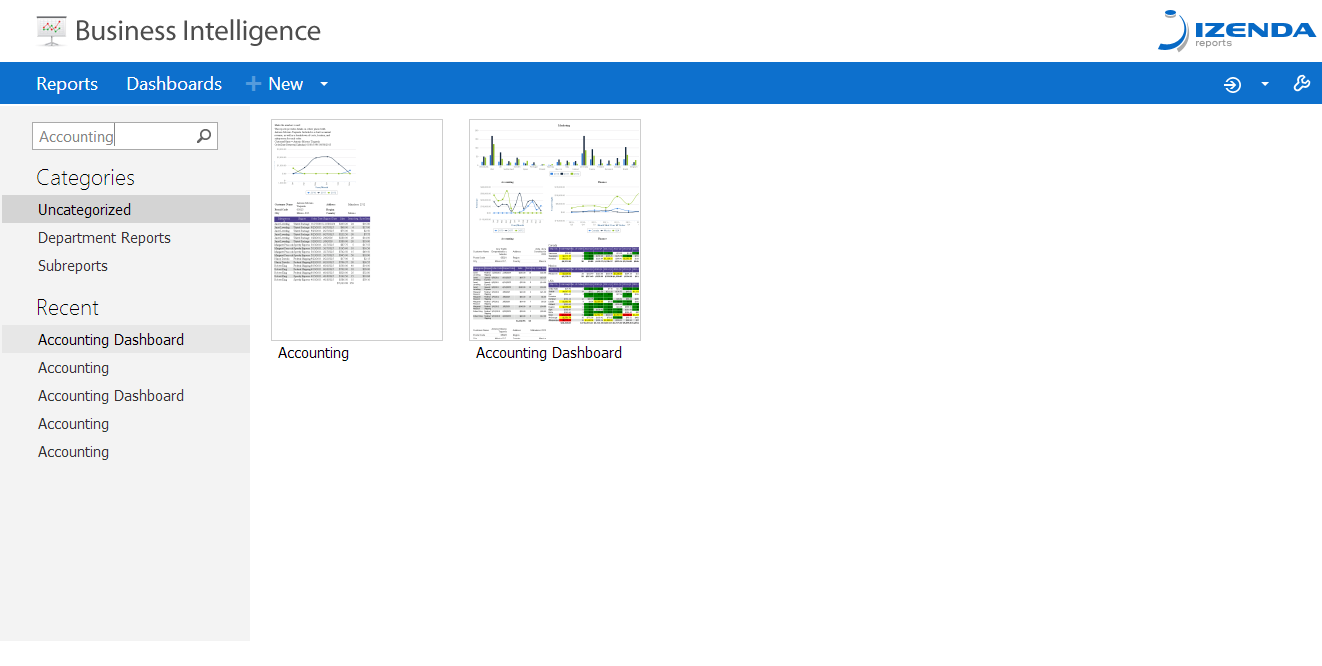 ##Left Side Bar The bar on the left side is where you will select report categories or recent reports. 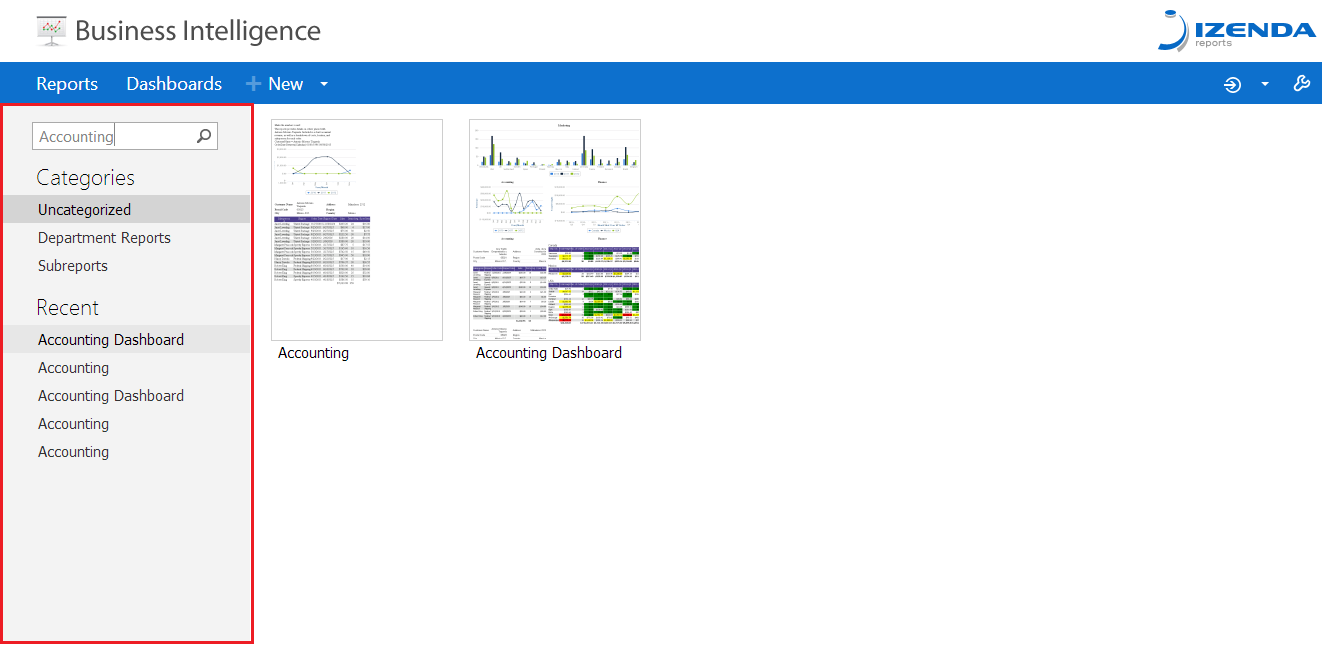 Selecting a recent report will take you directly to the Report Viewer page while selecting a category will update the grid to the right. You can also type a search term into the **Search** box. Pressing enter or clicking the magnifying glass will submit the search. The search will update all sections of the ReportViewer with reports and categories corresponding to the search term entered. ##Right Side Grid The grid on the right side contains all report thumbnails for the selected category or entered search term. 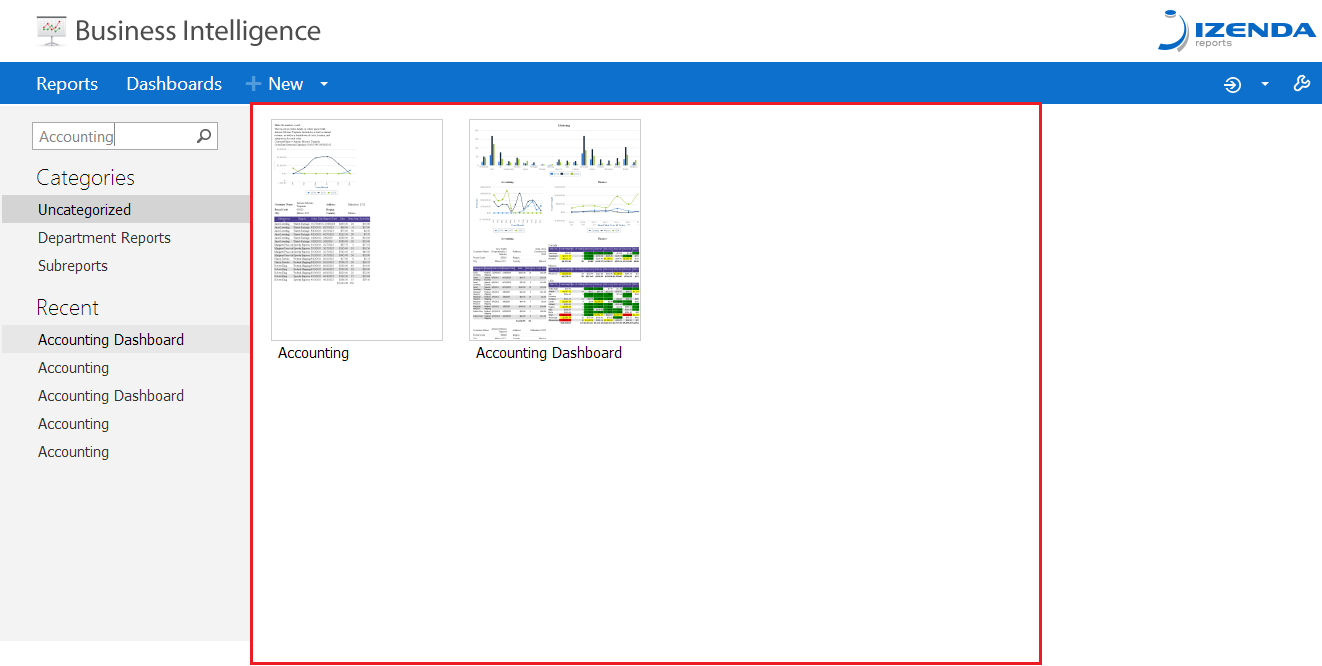 Each thumbnail has several different options. 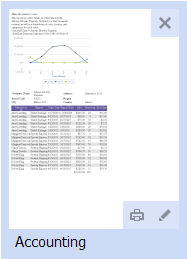 You can click on a thumbnail to view the report. You can also hover over the report to view options including printing the selected report, editing the report (redirects to the Report Designer), or deleting the report. These options can be enabled or disabled via various [[AdHocSettings|/API/AdHocSettings]]. ##Toolbar The toolbar on this page is included in the Default.Master page. If you are using your own master page, you can incorporate the structure of the Izenda master page into your own solution. You can either paste the structure directly into your existing master page or tweak the structure to fit your own solution. 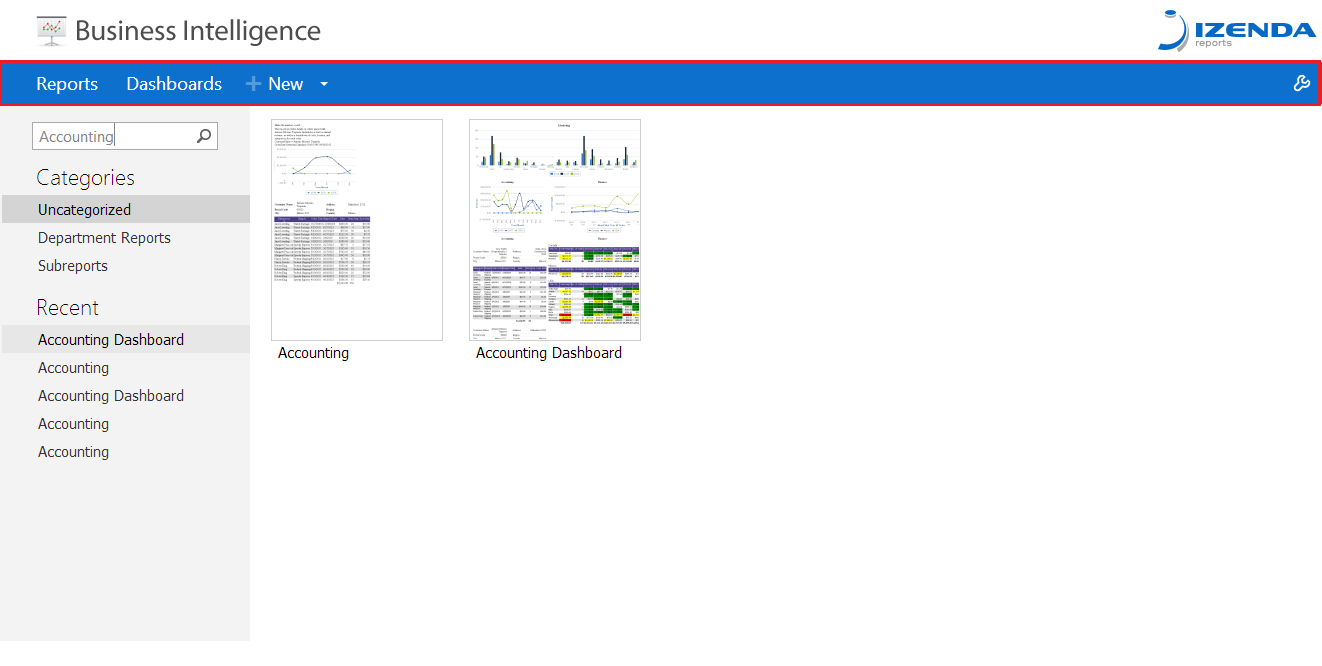 ##Customizing Report List ###Prior to 6.7 Before version 6.7, you could use the code-behind of the ReportList.aspx page to customize the page. You can get a list of reports guaranteed available to the current user via the [[FilteredListReports|/FAQ/FilteredListReports]] method. First, you would need to declare this object in your code: ```csharp private ReportInfo[] reports = AdHocSettings.AdHocConfig.FilteredListReports(); ``` Then you can iterate through the collection and process each into an HTML style link ```csharp foreach (ReportInfo info in reports) { string processedReportName = info.FullName.Replace(' ', ' '); Response.Write("<a href='" + AdHocSettings.ReportViewerWithDelimiter + "rn=" + processedReportName + "'> <b>" + info.FullName + "</b></a><br>"); } ``` As it iterates, you can print out the report name as a hyperlink that links to the Report Designer page. You can also do this via javascript or add buttons and functionality as you desire. <!--- **Report List code sample with no asp objects** This code sample utilizes no asp objects and prints out a simple list of reports with the format of the name or cat/name in a list on the page. * [[ReportListNoAspObjects.zip|http://www.izenda.com/Site/downloads/ReportListNoAspObjects.zip]] **Report List code sample using asp controls** This code sample utilizes a simple asp control and prints out a simple list of reports with the format of/ the name and category headings in a list down the page. * [[ReportListAspObjects.zip|http://www.izenda.com/Site/downloads/ReportListAspObjects.zip]] **Report List code sample with categories and design new report link.** This code sample utilizes asp controls and prints out a list of reports using the format of the name and category headings in a list down the page. * [[ReportListFull.zip|http://www.izenda.com/Site/downloads/ReportListFull.zip]] ---> ###6.7 And Later Newer versions of the demo site that are distributed on the Izenda site include a different page structure that leverages jQuery technologies and can be customized by modifying the javascript. It is pre-built to perform necessary functions that leverage the page structure and naming conventions. However, since it is open for editing, you can see how the Report List is built. As such, there will not be any code samples included here. ###Incorporating the report list into an existing application If you want to incorporate the report list page into your existing application, you have some options. The first option is to use the placeholder tags for the report list in your masterpage. They are called HeadPlaceHolder, PlaceHolder, and FooterPlaceHolder respectively, although they can be changed at your discretion as long as they remain consistent throughout the application. These placeholders will only be displayed on pages that use the placeholders and insert additional content into them. Therefore, you will end up with your own business's masterpage being used on reporting pages. If you want to retain the links that are normally displayed in the toolbar then you can either make that part of your masterpage or part of your reporting section by extracting the HTML for those list items and placing them where you see fit. Below is an example of the aforementioned process. 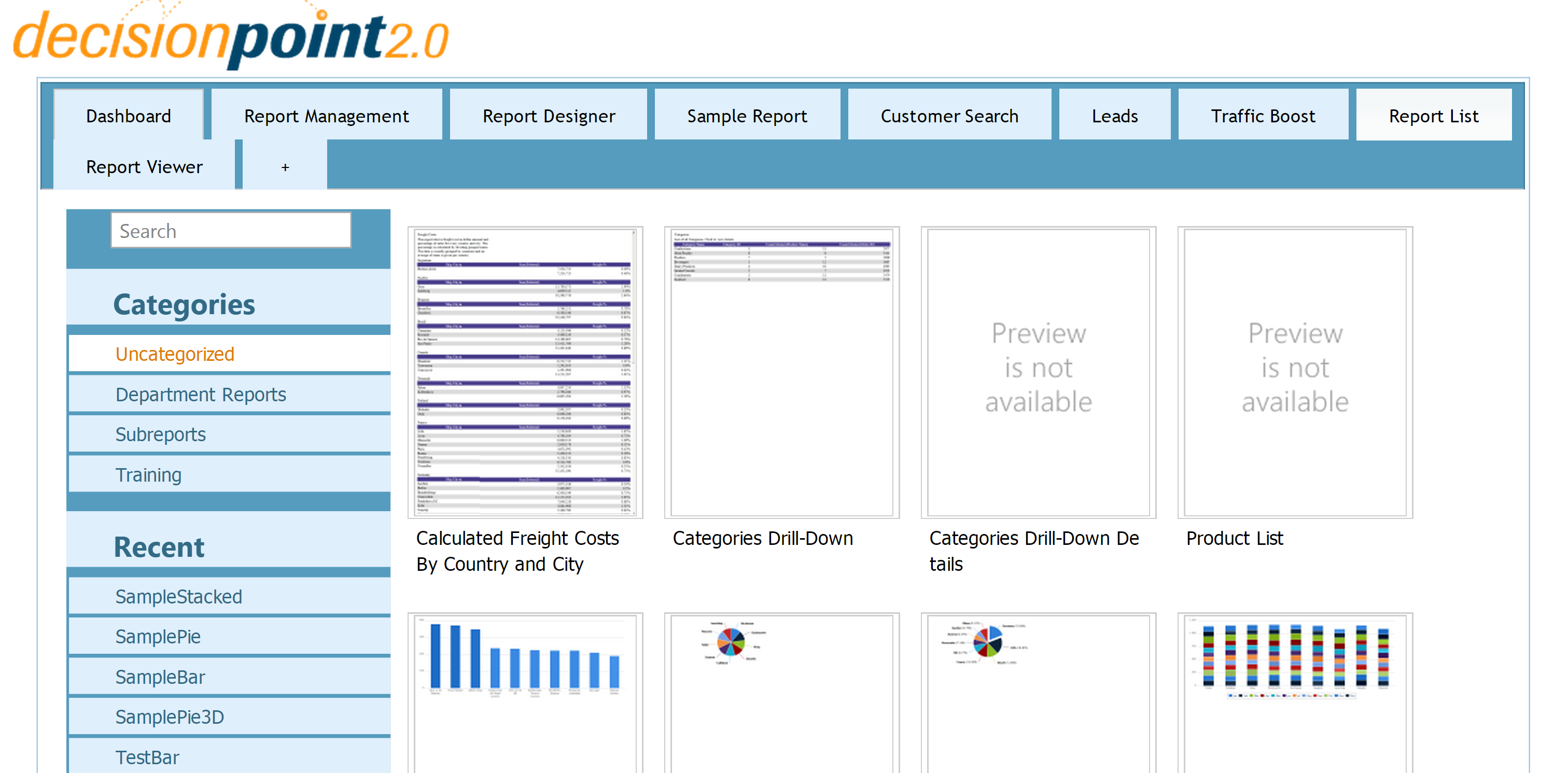
Uploading file...
Header
 **This documentation is for the legacy Izenda 6 product. Documentation for the new Izenda 7 product can be found at [[https://www.izenda.com/docs/|https://www.izenda.com/docs/]]**
Sidebar
 --- * [[Izenda 7 Series Documentation|https://www.izenda.com/docs/]] * [[Release Notes]] * [[Upgrade Best Practices|FAQ/Izenda-Update-Best-Practices]] * [[FAQ]] * [[Tutorials]] * [[The Izenda API|/API/AdHocConfig]] * [[The AdHocSettings class|/API/AdHocSettings]] * [Developer Links and Guides](/Guides/Developer-Links-and-Guides) * [[Known Issues]] --- * <a href="http://www.izenda.com" rel="nofollow" target="_blank">Izenda Website</a> * [Product Video](https://www.youtube.com/watch?v=X3-yWFq0w5A) * <a href="http://www.izenda.com/blog" rel="nofollow" target="_blank">Izenda Blog</a> * <a href="http://www.izenda.com/company/" rel="nofollow" target="_blank">About Us</a> * <a href="http://www.izenda.com/contact-us/" rel="nofollow" target="_blank">Contact Us</a> --- * [Guide To Report Design](/Guides/ReportDesign) * [Making Custom Forms Video](http://www.youtube.com/watch?v=5b2axJlgdFs) --- * [[Acknowledgements]]
Edit message:
Cancel