
Izenda Reports fully integrates with the security of existing ASP.NET applications allowing for trusted self-service reporting in multi-tenant environments. Using the API, security can be applied on-the-fly based on the requirements of the application and user credentials.
| Type of security | Example | Implementation Details |
|---|---|---|
| Login | Users must login before gaining access to reports. | RequireLogin CurrentUserName CurrentUserIsAdmin Your Login Page Integration |
| Data Sources | A specific user can only see certain data sources. | RequireLogin Basic Report Sharing VisibleDataSource Database Security |
| User Driven Report Sharing | A user can save a report and decide if they want other users to see this report. They can also mark a report read-only meaning it can be viewed but not saved over. | Basic Report Sharing CurrentUserIsAdmin ReportsPath Read-Only & Shared Checkboxes |
| Custom Report Control | Different departments can see different base reports. | VisibleDataSources hides reports for non-accessible datasources ReportsList may be overridden Storing Reports ReportsPath |
| Overwriting and Deleting Reports | Users can load shared or base reports, but should not be able to delete them or overwrite them. | AllowOverwritingReports AllowDeletingReports CurrentUserIsAdmin |
| Altering Capabilities by Role | Only power users should see the modify report button on the report viewer. Others will only access the report viewer. | ShowDesignLinks ShowModifyButton AllowOverwritingReports ShowAdminButton |
| Field/Record or Tenant Level Security | Salespeople look at the same report but see different data based on their territory and credentials. In a multi-tenant environment, reports and data for each customer, group, or tenant should be isolated. | PreExecuteReportSet - Hidden Filters ProcessEqualsSelectList Field & Record Level Security |
###Login Security
To enable basic login security, add the following code to the PostLogin() method of your CustomAdHocConfig class. This is normally found in Global.asax file. The code should look up user credentials from your application, database or windows authentication and provide it to the Izenda Reports API. Furthermore, specifying your login page will ensure that users do not see reports without being logged in.
public override void PostLogin()
{
	Izenda.AdHoc.AdHocSettings.CurrentUserName = LookupUserName();
	Izenda.AdHoc.AdHocSettings.CurrentUserIsAdmin = LookupAdminRole();
	AdHocSettings.RequireLogin = true;
	AdHocSettings.LoginUrl = "/App/Login.aspx";
}
The method will need to be called from your login process with the following line.
Izenda.AdHoc.AdHocSettings.AdHocConfig.PostLogin()###</a>Data Sources
The API allows control over which data sources a user sees based on their credentials. In the following example, members of the "Sales" role would see additional data sources that normal users would not. Any reports that utilize these data sources would only be visible to members of the sales role.
public override void PostLogin()
{
AdHocSettings.VisibleDataSources = new string[] {"Products"};
	if(IsInRole("Sales"))
	{
		AdHocSettings.VisibleDataSources = new string[]
		{"Products", "Categories", "Orders"};
	}
}
The method will need to be called from your login process with the following line.
Izenda.AdHoc.AdHocSettings.AdHocConfig.PostLogin()###User Driven Report Sharing
Once the login security is implemented, users can set the shared and read only status of a report. If a report is shared, other members of that tenant will be able to see it. If it is marked read-only, users will be able to load the report, but any modifications will need to be saved as a different report name. These limitations do not apply to users with admin rights enabled via CurrentUserIsAdmin.
public override void PostLogin()
{
	Izenda.AdHoc.AdHocSettings.CurrentUserName = LookupUserName();
}
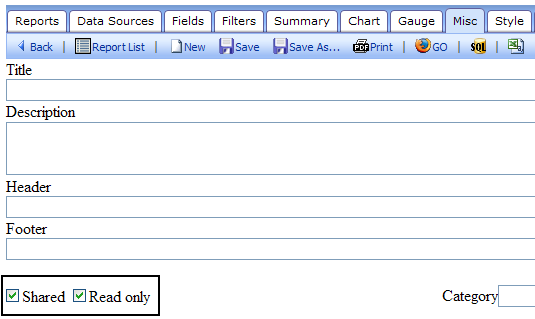
This is a screen shot of the Misc tab in the Report Designer showing the "Shared" & "Read Only" checkboxes that a user can select on a per report basis.
###Custom Report Control
To apply additional constraints to which users see what reports, it is necessary to override the ListReports method. See Report Management for additional details.
public override Izenda.AdHoc.ReportInfo[] ListReports()
{ Return filtered list}
###Overwriting and Deleting Reports</a>
The API allows control of deleting or modifying reports. Reports can be accessed as Read-Only and can not be modified or deleted.
 public override void ConfigureSettings()
{
	AdHocSettings.AllowOverwritingReports = true;
	AdHocSettings.AllowDeletingReports = true;
}
###Altering Capabilities by Role
The API allows for over a hundred features of Izenda reports to be hidden or altered based on the user's role. All settings get applied on a per-user basis. The following code applies properties like the connection string, where reports are stored and visibility of the modify button modify button based on the user.
public override void PostLogin()
{
	//Set connection string per-tenant
	AdHocSettings.SqlServerConnectionString = GetConnectionForUser();
	//Set the stored reports file folder path per-tenant
	AdHocSettings.ReportsPath="\\"   GetUserCompany()   "\\"
	GetUserDepartment();
	//Set table and view access
	AdHocSettings.VisibleDataSources = GetTables(GetUserRole);
	if (GetUserRole()=="PowerUser")
	{
		AdHocSettings.ShowModifyButton=true;
		AdHocSettings.AllowDeletingReports=false;
	}
}
The method will need to be called from your login process with the following line.
Izenda.AdHoc.AdHocSettings.AdHocConfig.PostLogin()###Field/Record or Tenant Level Security
Many applications limit users to specific records based on their credentials. The HiddenFilters API Setting may be used to add hidden filters to reports which limit the results based on the user, their credentials and their tenant. In this example, anyone reporting on the AcmeWidgetSales view will be limited to data in their TerritoryID.
public override void PostLogin()
{
	AdHocSettings.HiddenFilters["AccountID"] = AccountID;
		//Set the account tenancy
	if (!Izenda.AdHoc.AdHocSettings.CurrentUserIsAdmin)
	{
		//needs to return an array of strings!
		string[] TerritoryID = GetCurrentUserTerritories(UserName);
		//add the filters to the reports based on the tenancy of this user
		AdHocSettings.HiddenFilters["TerritoryID"] = TerritoryID;
			// or new string[] {"1","2","3","4"};

		AdHocSettings.ShowModifyButton=false; //set regular permissions
		AdHocSettings.AllowDeletingReports=false;
	}
}
Continue to Views