
#Report Viewer
All buttons in the Report Viewer are implemented in pure HTML. They all can be manipulated from Resources/html/ReportViewer-Body.ascx. To completely disable any button, simply remove it from the ascx file. If you wish to conditionally suppress a button, you can write conditional logic in your ascx to hide it based on your own custom logic.
##Report List Button

The report list button is used to jump right into the report list. This is the code within the ReportViewer-Body.ascx that renders this button:
<a class="btn" id="rlhref" href="ReportList.aspx" lang-title="js_Reportlist" title="Report list">
  <img class="icon" src="rs.aspx?image=ModernImages.report-list.png" lang-alt="js_Reportlist" alt="Report list" />
  <span class="hide" lang-text="js_Reportlist">Report list</span>
</a>
##Save Options
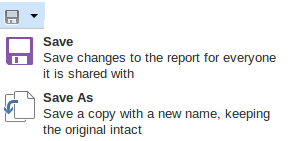
Clicking the downward facing triangle next to the save icon will reveal further save options; save and save as.
<button type="button" class="btn" lang-title="js_Save" title="Save" id="btnSaveDirect" onclick="javascript:event.preventDefault();SaveReportSet();">
  <img class="icon" src="rs.aspx?image=ModernImages.floppy.png" lang-alt="js_Save" alt="Save" />
  <span class="hide" lang-text="js_Save">Save</span>
</button>

<button type="button" class="btn dropdown-toggle" data-toggle="dropdown">
  <span class="caret"></span>
</button>
###Save

The save button simply saves the current report.
<li class="hide-readonly"><a href="javascript:void(0)" style="min-width: 18em;" onclick="javascript:SaveReportSet();">
  <img class="icon" src="rs.aspx?image=ModernImages.save-32.png" lang-alt="js_SaveChanges" alt="Save changes" />
  <b lang-text="js_Save">Save</b><br>
  <span lang-text="js_SaveChangesMessage">Save changes to the report for everyone it is shared with</span>
</a></li>
###Save As

This button allows a user to save the current report with a specific name.
<li><a href="javascript:void(0)" onclick="javascript:ShowSaveAsDialog();">
  <img class="icon" src="rs.aspx?image=ModernImages.save-as-32.png" lang-alt="js_SaveACopy" alt="Save a copy" />
  <b lang-text="js_SaveAs">Save As</b><br>
  <span lang-text="js_SaveACopyMessage">Save a copy with a new name, keeping the original intact</span>
</a></li>
##Print Options
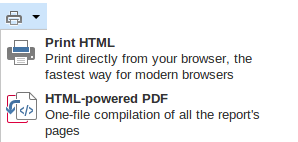
Clicking the downward facing triangle next to the print icon will reveal further print options; HTML print and PDF print.
<button type="button" class="btn" lang-title="js_Print" title="Print" onclick="responseServer.OpenUrl('rs.aspx?p=htmlreport&print=1', 'aspnetForm', '');">
  <img class="icon" src="rs.aspx?image=ModernImages.print.png" alt="Printer" />
  <span class="hide" lang-text="js_Print">Print</span>
</button>

<button type="button" class="btn dropdown-toggle" data-toggle="dropdown">
  <span class="caret"></span>
</button>
###HTML Print

This button allows for direct printing of a report from the browser.
<li><a href="javascript:void(0)" title="" style="min-width: 18em;" onclick="responseServer.OpenUrl('rs.aspx?p=htmlreport&print=1', 'aspnetForm', '');">
  <img class="icon" src="rs.aspx?image=ModernImages.print-32.png" alt="" />
  <b lang-text="js_PrintHTML">Print HTML</b><br>
  <span lang-text="js_PrintDirectlyMessage">Print directly from your browser, the fastest way for modern browsers</span>
</a></li>
###PDF Print

This button allows for printing of a report as a PDF file.
<li><a href="javascript:void(0)" title="" style="min-width: 18em;" onclick="responseServer.OpenUrl('rs.aspx?p=htmlreport&print=1', 'aspnetForm', '');">
  <img class="icon" src="rs.aspx?image=ModernImages.print-32.png" alt="" />
  <b lang-text="js_PrintHTML">Print HTML</b><br>
  <span lang-text="js_PrintDirectlyMessage">Print directly from your browser, the fastest way for modern browsers</span>
</a></li>
##Exports Button
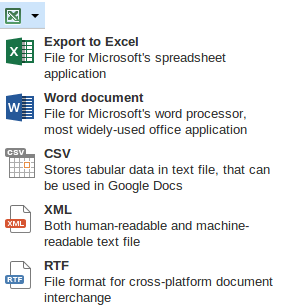
Clicking the downward facing triangle next to the Exports icon will reveal further exporting options; Excel, Word, CSV, XML, and RTF.
<button type="button" class="btn" title="Excel" onclick="responseServer.OpenUrlWithModalDialogNewCustomRsUrl('rs.aspx?output=XLS(MIME)', 'aspnetForm', 'reportFrame', nrvConfig.ResponseServerUrl);">
  <img class="icon" src="rs.aspx?image=ModernImages.excel.png" alt="Get Excel file" />
  <span class="hide" lang-text="js_ExportToExcel">Export to Excel</span>
</button>

<button type="button" class="btn dropdown-toggle" data-toggle="dropdown">
  <span class="caret"></span>
</button>
###Excel Button

Clicking this causes the current report to be exported as an excel document.
<li><a href="javascript:void(0)" title="" style="min-width: 18em;" onclick="responseServer.OpenUrlWithModalDialogNewCustomRsUrl('rs.aspx?output=XLS(MIME)', 'aspnetForm', 'reportFrame', nrvConfig.ResponseServerUrl);">
  <img class="icon" src="rs.aspx?image=ModernImages.xls-32.png" alt="" />
  <b lang-text="js_ExportToExcel">Export to Excel</b><br>
  <span lang-text="js_ExportToExcelMessage">File for Microsoft's spreadsheet application</span>
</a></li>
###Word Button

Clicking this causes the current report to be exported as a word document.
<li><a href="javascript:void(0)" title="" onclick="responseServer.OpenUrlWithModalDialogNewCustomRsUrl('rs.aspx?output=DOC', 'aspnetForm', 'reportFrame', nrvConfig.ResponseServerUrl);">
  <img class="icon" src="rs.aspx?image=ModernImages.word-32.png" alt="" />
  <b lang-text="js_WordDocument">Word document</b><br>
  <span lang-text="js_WordDocumentMessage">File for Microsoft's word processor, most widely-used office application</span>
</a></li>
###CSV Button

Clicking this causes the current report to be exported in CSV format.
<li><a href="javascript:void(0)" title="" onclick="responseServer.OpenUrlWithModalDialogNewCustomRsUrl('rs.aspx?output=CSV', 'aspnetForm', 'reportFrame', nrvConfig.ResponseServerUrl);">
  <img class="icon" src="rs.aspx?image=ModernImages.csv-32.png" alt="" />
  <b lang-text="js_CSV">CSV</b><br>
  <span lang-text="js_CSVMessage">Stores tabular data in text file, that can be used in Google Docs</span>
</a></li>
###XML Button

Clicking this causes the current report to be exported in XML format.
<li><a href="javascript:void(0)" title="" onclick="responseServer.OpenUrlWithModalDialogNewCustomRsUrl('rs.aspx?output=XML', 'aspnetForm', 'reportFrame', nrvConfig.ResponseServerUrl);">
  <img class="icon" src="rs.aspx?image=ModernImages.xml-32.png" alt="" />
  <b lang-text="js_XML">XML</b><br>
  <span lang-text="js_XMLMessage">Both human-readable and machine-readable text file</span>
</a></li>
###RTF Button

Clicking this causes the current report to be exported in RTF format.
<li id="RTFExportButton"><a href="javascript:void(0)" title="" onclick="responseServer.OpenUrlWithModalDialogNewCustomRsUrl('rs.aspx?output=RTF', 'aspnetForm', 'reportFrame', nrvConfig.ResponseServerUrl);">
    <img class='icon' src="rs.aspx?image=ModernImages.rtf-32.png" alt="" />
    <b lang-text='js_RTF'>RTF</b><br>
    <span lang-text='js_RTFMessage'>File format for cross-platform document interchange</span>
  </a>
</li>
##Send Button

Clicking this will send the current report via email.
<div class="btn-group">
  <button type="button" class="btn" lang-title="js_SendReport" title="Send report" onclick="InitiateEmail();">
    <img class="icon" src="rs.aspx?image=ModernImages.mail.png" lang-alt="js_SendReport" alt="Send report" />
    <span class="hide" lang-text="js_SendReport">Send report</span>
  </button>
</div>