
#Section 15 - Expressions
##15.1 Expressions Basics
An expression in Izenda is a SQL injection which overrides the default output of a field in favor of whatever custom SQL is placed in the query.
In the Advanced Settings popup menu (accessed by clicking the gear icon on the right hand side of each field dialog in the Fields tab) we can see a text box called Expressions.


This box accepts simple code which allows us to perform calculations on fields provided by the connection string or view.
An expression cannot be run on another expression. Since there can only be one layer of expressions, to process complex multipart equations some amount of calculation must be done by using a computed column from within a view.
An expression may output a value which is not the expected value for that field's data type. For example, we could use datediff() to calculate an integer number of days on a datetime column, leading Izenda to treat the integer value as a datetime. It is best practice to select a 'container' field that matches your expected output, to prevent unexpected behavior in the report designer.
Expressions can:
- Add, multiply, subtract, or divide two or more existing fields;
- Convert integers into ratios based on other numerator/denominator fields;
- Concatenate or add text to field output;
Expressions cannot:
- Create new ad-hoc fields
Three Ways to Apply an Expression to a Field
Each of these expressions operates independently of the specified field, which is ‘Freight’ in this example. Let’s say we want to get half of the freight value. We can specify the field in the expression in different ways – naming the field directly, using the {0} operator. The Expressions text box overrides the values of the field selected- so any field can be used to create calculated columns.
In the Expressions text box in the Advanced Settings popup for the Freight field, we could write these expressions in different syntaxes to compute (½ * Freight) = x:
.5 * {0} => Result is .5 * Freight
.5 * Freight => Result is .5 * Freight
Either of these examples will work to compute (Freight/2). The first example will work when applied to the Freight field only.
If we enter the second variant in the Expressions box for another field (such as 'UnitPrice'), then the expressed value:
.5 * [Freight] => Result is .5 * Freight
The expression box overrides any unit price data with the entered formula, displaying (½ * Freight).
It is not necessary to use square brackets, or parentheses, but using them is best practice to organize expressions and prevent syntax issues.
##15.2 Concatenation
We can also use expressions to manipulate text. Let’s say that we have 'ShipCity' (e.g. Berlin), as well as 'ShipCountry' (e.g. Germany).
Using the following expression:
[ShipCity] + ', ' + [ShipCountry]

This would combine ‘Berlin’ and ‘Germany’ to ‘Berlin, Germany’. Note that in order to add text, we use single quotes. Anything between single quotes will appear exactly as typed, in this case a comma and single space.

Parenthesis: Prior to release 6.7.263, expressions that included escaped literal parentheses ('\(' and '\)') would not render correctly. This has been fixed. However, expressions that use non-escaped literal parentheses ('(' and ')') are still invalid to prevent SQL injection.
##15.3 Advanced Expressions
Ratios
We can use arithmetic to get a percentage of one value compared to an aggregate value.
The following expression determines the percentage of an order’s cost paid for shipping:
([Orders].[Freight])/(([Order Details].[UnitPrice]) * ([Order Details].[Quantity])+([Orders].[Freight]))
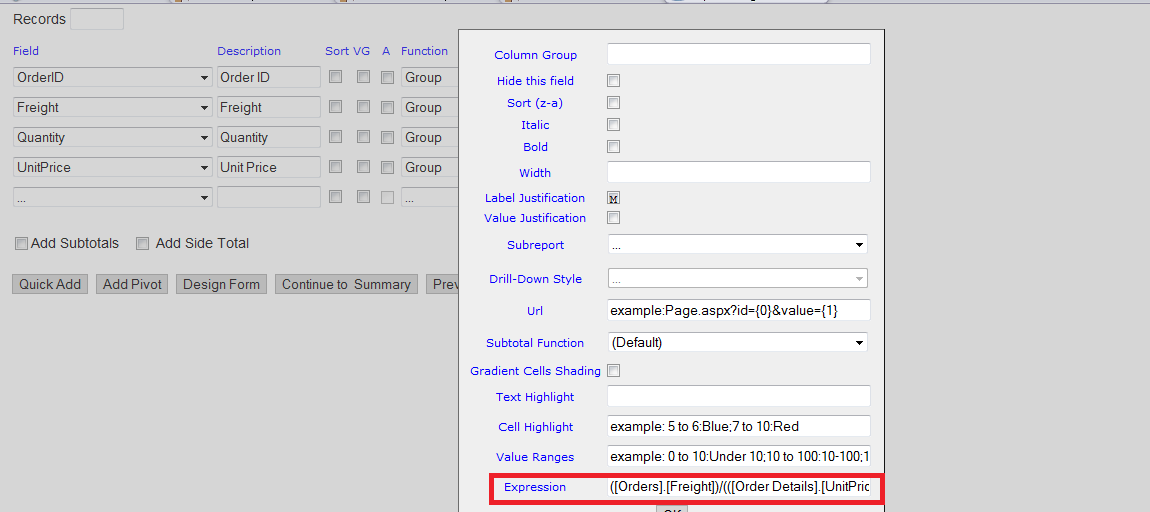
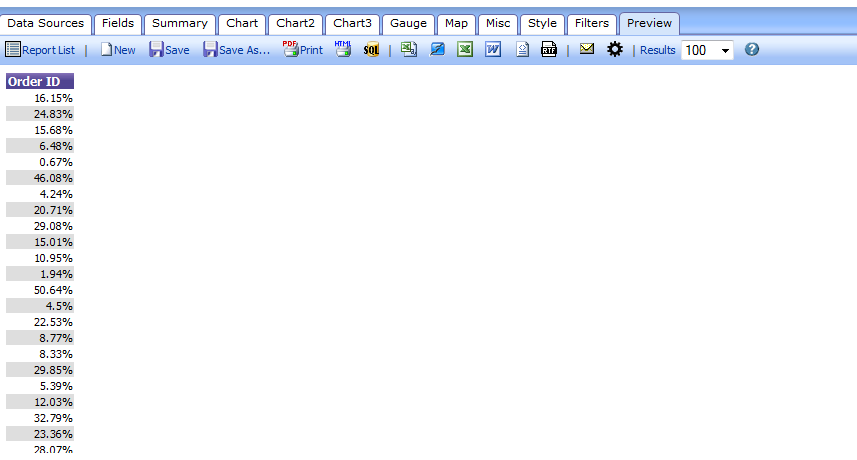
The above expression would return a decimal output. For example, if Freight were $10 and the total sum of UnitPrice*Quantity were $90, then 10/(90+10) = .1 as our result. Izenda will read this as a numeric value, so all that is necessary to turn this into a percentage is to select the ‘%’ format from the Formats dropdown for this field.
Caution: The Limits of Expressions
However, this is where we encounter a limitation on expressions. The above expression will produce correct results for each product in the order. Since the data necessary for this expression comes from multiple data sources (Orders, Products, and Order Details in the Northwind DB) it is necessary to use key variables – in this case, OrderID – to link the tables. Also, each OrderID has multiple associated ProductID to represent multiple products in each order. It is not possible to specify variables from within an expression. The net result of our expression will produce the UnitPrice*Quantity for a single 'ProductID' on each line. It will not sum the total UnitPrice*Quantity values for multiple products within an order.
If we break the total equation into steps, the problem becomes clearer:
- Calculate UnitPrice*Quantity for each ProductID within an OrderID.
- Sum these calculated values into a hypothetical TotalUnitPrice for the OrderID.
- Add Freight to TotalUnitPrice and divide Freight by this value to get a percentage freight cost of total order cost.
Since expressions cannot create fields, but only display calculations based on fields, expressions cannot execute step 2. Steps 1 and 2 should be calculated in a view, which would create a computed column that can be used in an expression for step 3.
##15.4 Expression Functions
Functions
As you may have noticed, we can use some aggregate functions in expressions. In order to prevent SQL injection, only a limited set of SQL functions are turned on by default.
-
avg(OrderID) produces the average of all OrderID values.
-
cast(OrderID, AS DATATYPE)
e.g. "cast([OrderID] as varchar)"Converts a value from one data type to another. This should only be done when you do not want to make a permanent change to the data type, such as converting numeric to strings and concatenating them. -
convert (DATATYPE, [OrderID])
e.g. "convert(varchar, [OrderID])"
More information about using these functions can be found here and here
-
count(OrderID) produces a count of all OrderID values.
-
count(Distinct [OrderID]) produces a count of all distinct OrderID values.
-
datediff(part, [begindate], [enddate]) allows you to calculate the difference between two datetimes with a user selected level of granularity, for example the number of days, hours, or minutes between both input values.
-
distinct(OrderID) produces a list of all distinct OrderID values. This is an Oracle only function.
-
isnull(OrderID, x) checks to see if there is a null value in OrderID and replaces it with ‘x’.
-
length(OrderID) returns the length of a string. Length is used with an Oracle db. If you’re using SQL, see len(OrderID).
-
len(OrderID) returns the length of a string. Len is used with a SQL db. If you’re using Oracle, see length(OrderID).
-
max(OrderID) produces the maximum OrderID value within a given range.
-
min(OrderID) produces the minimum OrderID value within a given range.
-
round(OrderID, x) takes a decimal value and rounds it to x digits.
-
sum(OrderID) produces the sum of all OrderID values.
-
case when ([OrderID]) > 10000 then 'valid' else 'invalid' end returns the text string valid if OrderID is greater than 10,000, and the text string invalid if OrderID is 10,000 or less.
Note: Case statements became available as of version 6.7.0.262.
You can also nest other functions inside case statements using parenthesis around each nested function (e.g. case when (SUM([Freight)) > 100 THEN (SUM([Freight])) * (COUNT(OrderID)) ELSE (SUM([Freight])) END). The results of the case expression must be of the same datatype, but they do not have to correspond to the datatype of the field you selected (e.g. selecting [Freight] and then outputting 'Valid' or 'Invalid' will work, but outputting [Freight] or 'Invalid' will not). This is a limitation within SQL itself.
More information about using this function can be found here.
It is possible to enable other SQL functions or write new functions.