
#Izenda MVC Kit Integration Guide
##About
This guide is designed to instruct first-time users how to integrate Izenda with simple MVC application. This guide will use Izenda mvc5r3 kit, a simple MVC application, which is downloadable at http://wiki.izenda.us/Guides/MVC-Integration/Sample_MVCApp.zip, and Visual Studio Express 2013 for Web.
##Instructions
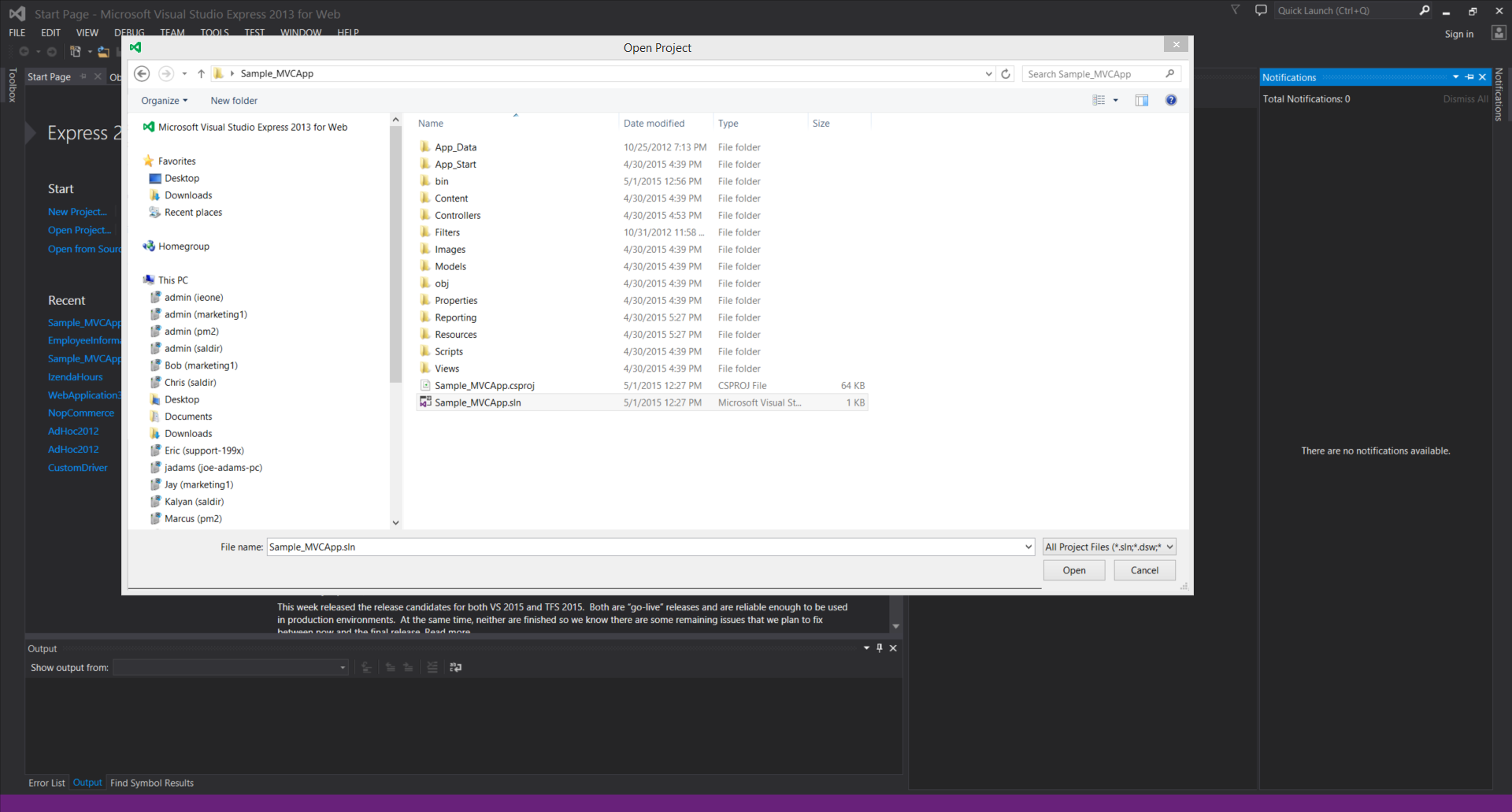
###Step 1. Open the simple MVC application in Visual Studio
###Step 2. Add Izenda.AdHoc.dll and log4net.dll to the project’s reference
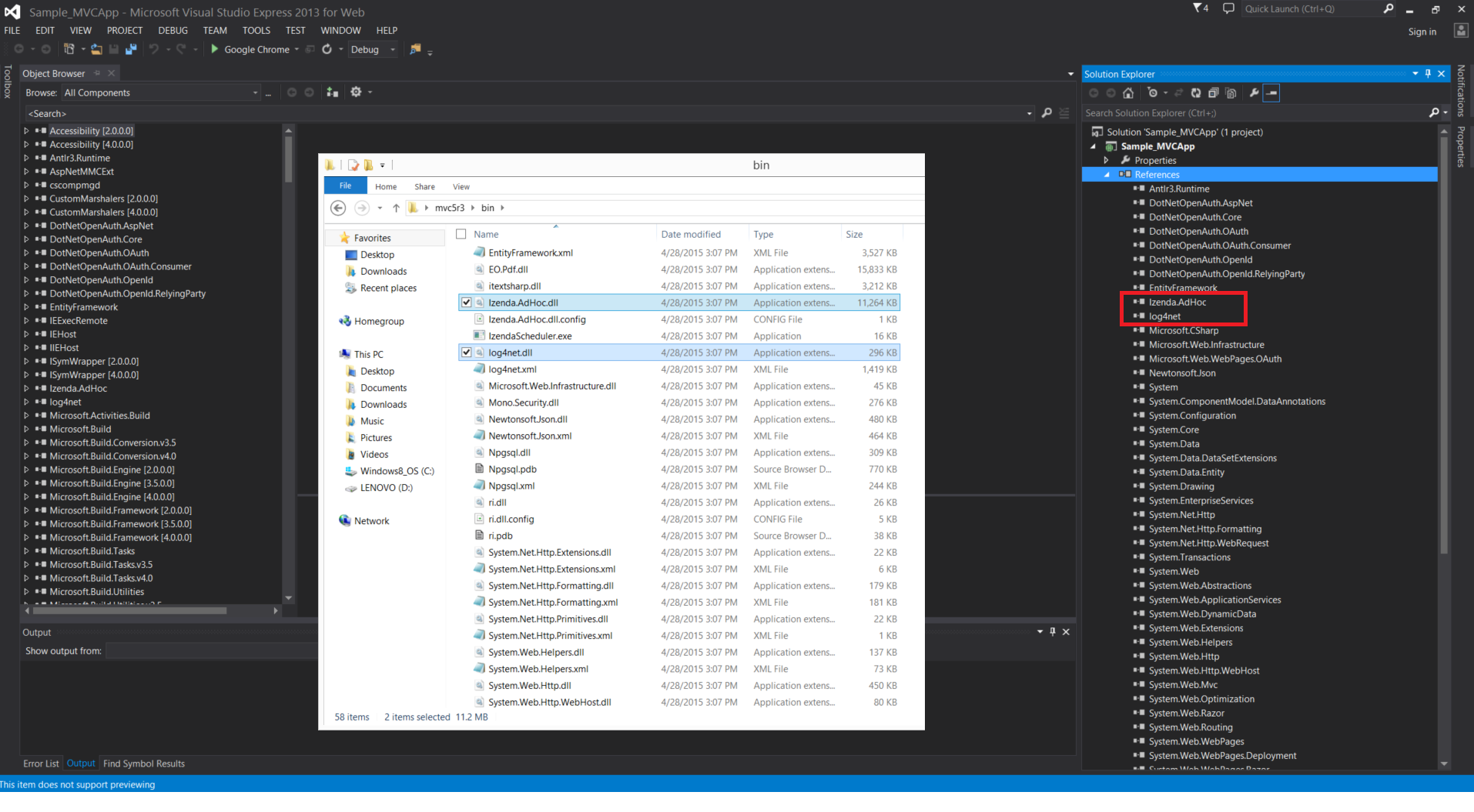
Right click on 'References' under project name in Solution Explorer window, then click 'Add Reference'.
Click the 'Browse' button and browse to \mvc5r3\bin, where Izenda.AdHoc.dll and log4net.dll are. Add them to reference.
###Step 3. Add IzendaStaticResourcesController.cs and IzendaReportingController.cs to the project
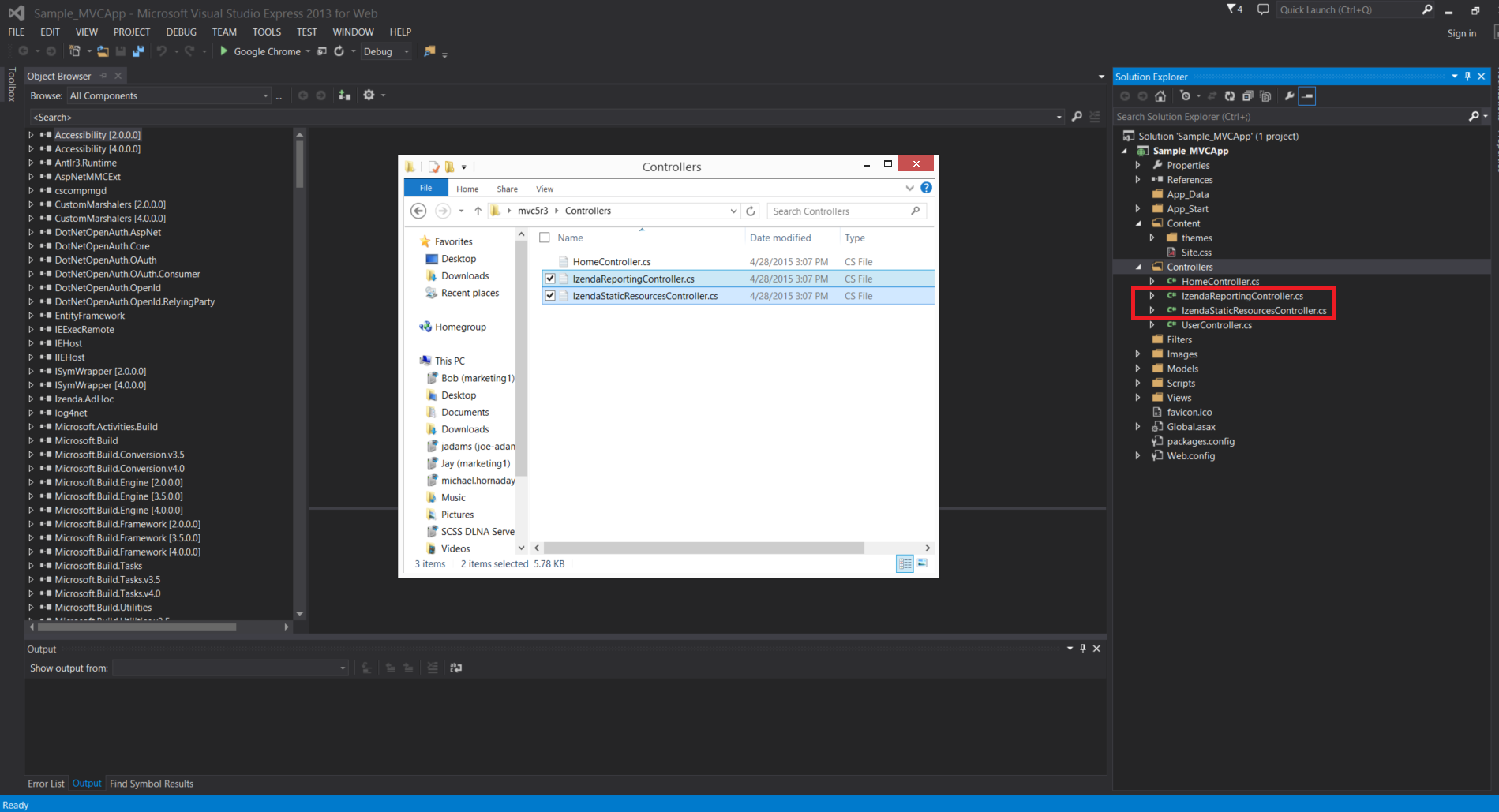
IzendaStaticResourcesController.cs and IzendaReportingController.cs are at mvc5r3\Controllers. Add them under Controllers as below.
###Step 4. Change Namespaces of Controllers
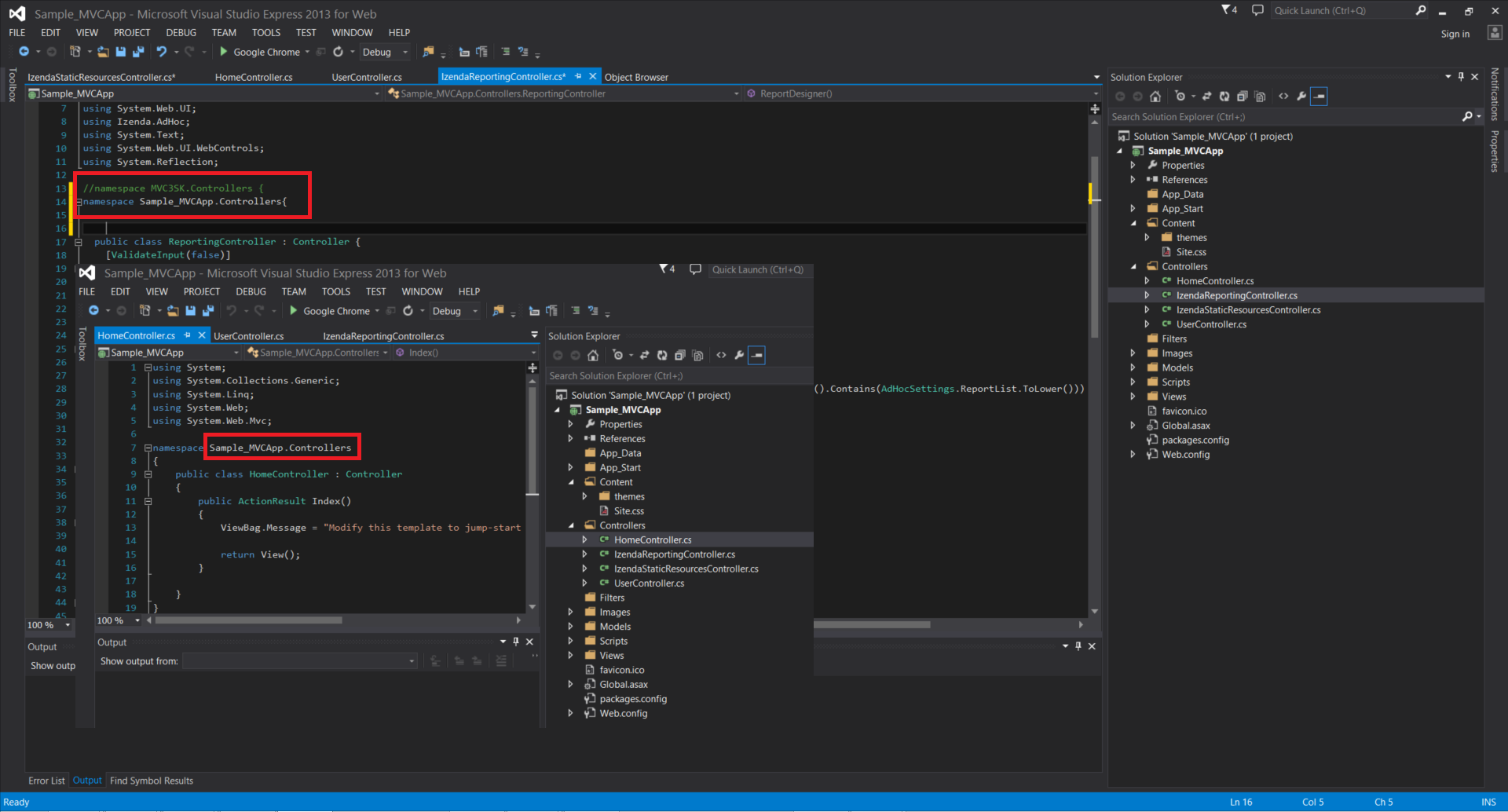
Change namespaces of IzendaStaticResourcesController.cs and IzendaReportingController.cs to match all other controllers in the application. Ex) if the namespace is in other controller file is ABC.Controllers, then MVC3SK.Controllers -> ABC.Controllers
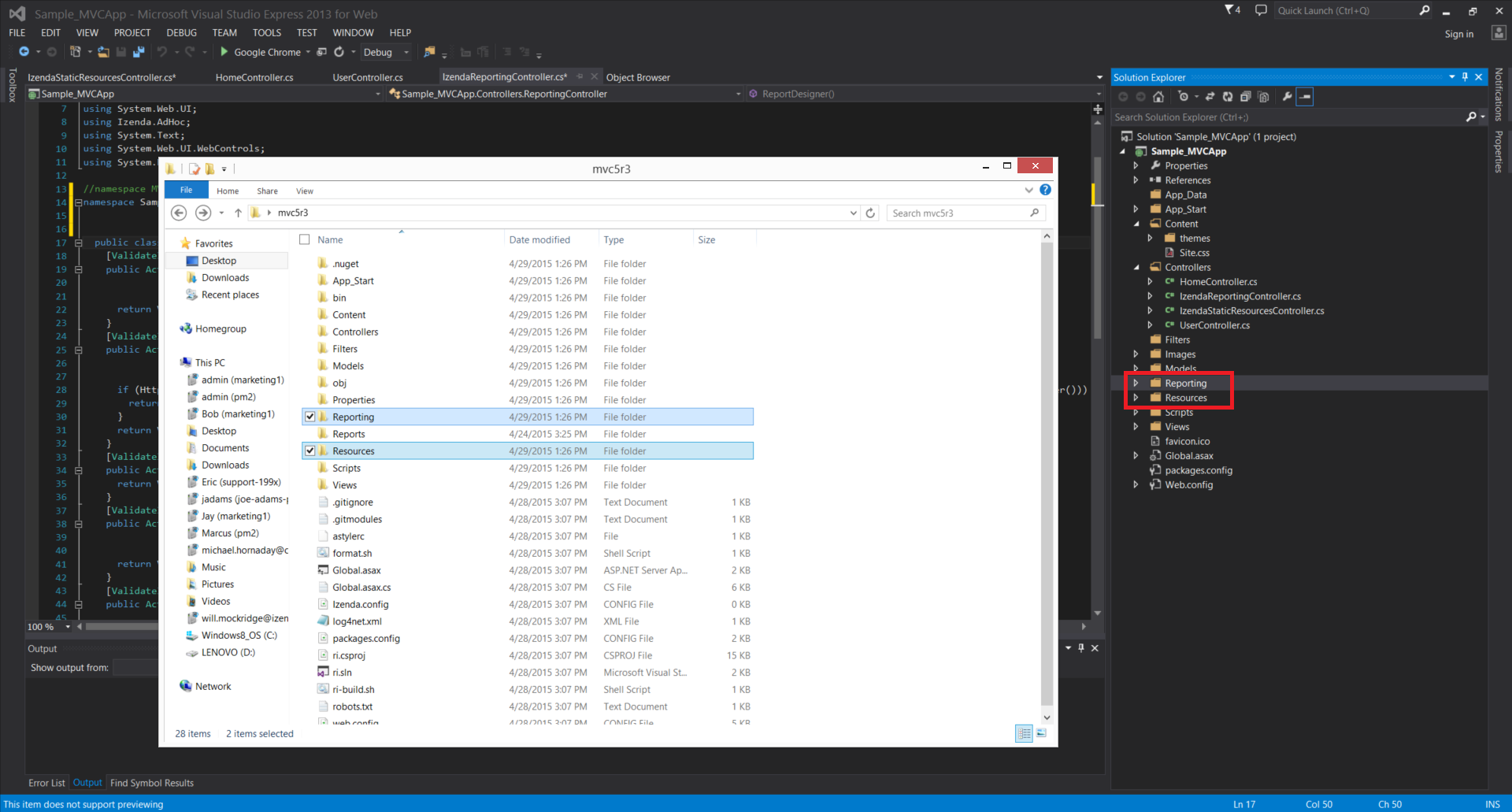
###Step 5. Add Reporting and Resources folders to the project
Add 'Reporting' and 'Resources' from \mvc5r3 to project by dragging and dropping them under Sample_MVCApp in Solution Explorer
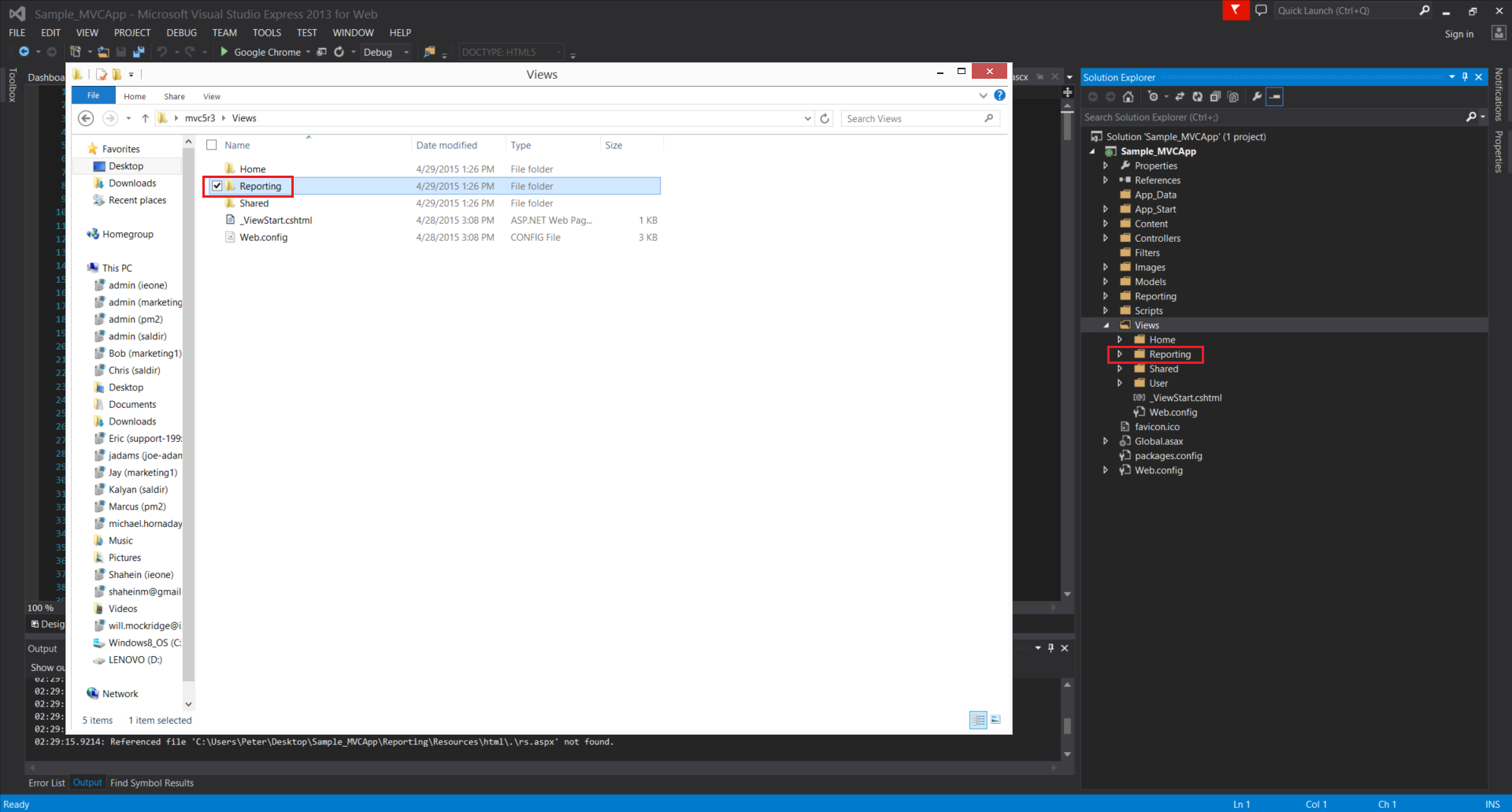
###Step 6. Add mvc5r3\Views\Reporting folder
Add the Reporting folder in mvc5r3\Views to the project's Views
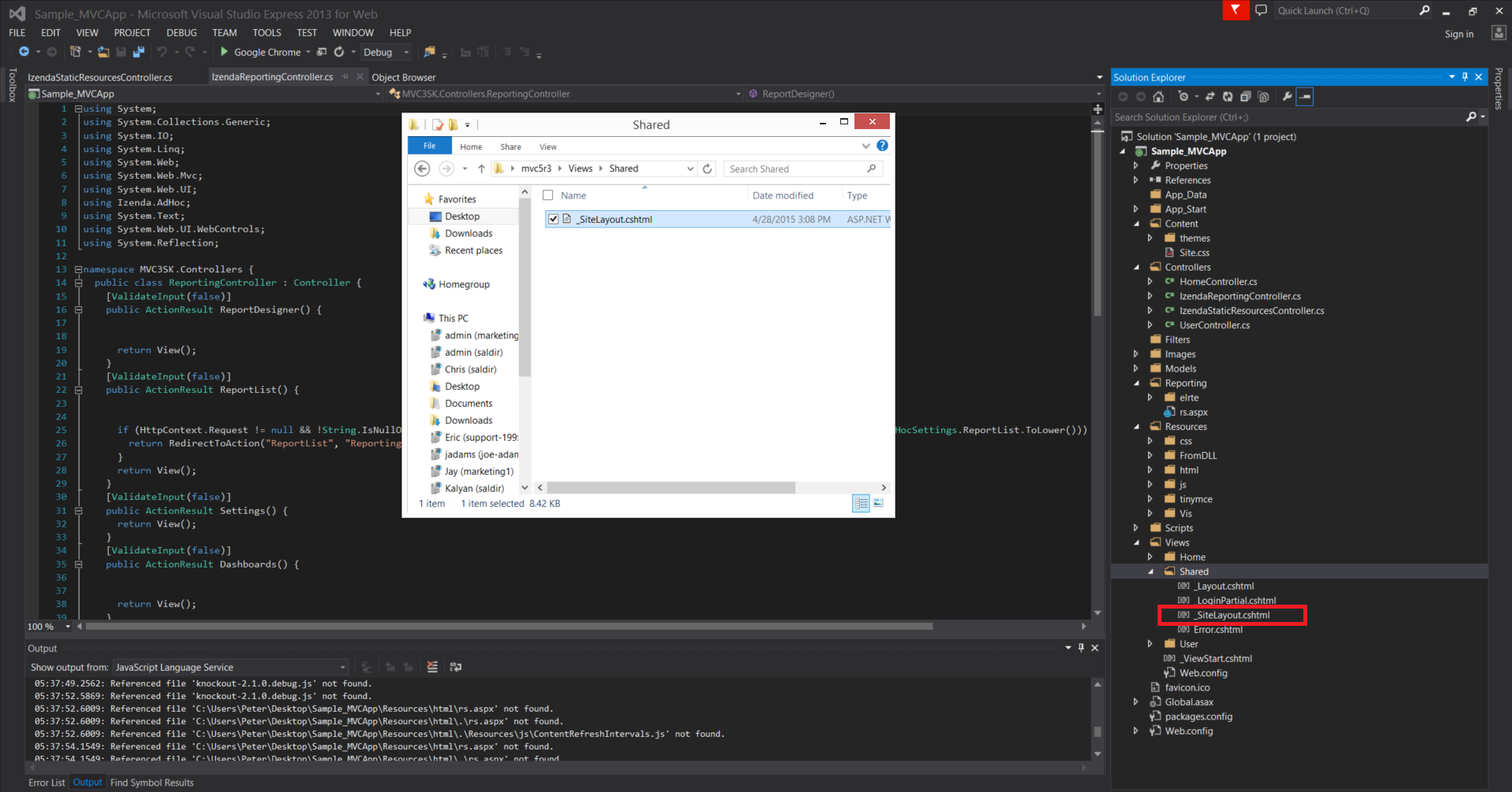
###Step 7. Add _sitelayout (mvc5r3\Views\Shared) to the project’s Shared under Views
Add _sitelayout (mvc5r3\Views\Shared) to the project’s Shared under Views
###Step 8. Copy code from Global.asax except the first line and paste in project’s Global.asax
Copy code from Global.asax except the first line and paste in project’s Global.asax
##Global.asax from mvc5r3(C♯)
<%@ Application Codebehind="Global.asax.cs" Inherits="MVC4Razor2.MvcApplication" Language="C#" %> //Copy except this line
<%@ Import Namespace="Izenda.AdHoc"%>
<%@ Import Namespace="System.IO"%>

<script runat="server">
  void Application_AcquireRequestState(object sender, EventArgs e) {
    CustomAdHocConfig.InitializeReporting();
  }

  [Serializable]
  public class CustomAdHocConfig : FileSystemAdHocConfig {
    public static void InitializeReporting() {
      if (HttpContext.Current.Session == null || HttpContext.Current.Session["ReportingInitialized"] != null)
        return;
      AdHocSettings.LicenseKey = "INSERT_LICENSE_KEY_HERE";
      AdHocSettings.SqlServerConnectionString = @"INSERT_CONNECTION_STRING_HERE";
      AdHocSettings.GenerateThumbnails = true;
      AdHocSettings.ShowSimpleModeViewer = true;
      AdHocSettings.IdentifiersRegex = "^.*[iI][Dd]$";
      AdHocSettings.TabsCssUrl = "/Resources/css/tabs.css";
      AdHocSettings.ReportCssUrl = "../Resources/css/Report.css";
      AdHocSettings.ShowBetweenDateCalendar = true;
      AdHocSettings.DashboardViewer = "Dashboards";
      AdHocSettings.ReportViewer = "ReportViewer";
      AdHocSettings.InstantReport = "InstantReport";
      AdHocSettings.ReportDesignerUrl = "ReportDesigner";
      AdHocSettings.DashboardDesignerUrl = "DashboardDesigner";
      AdHocSettings.ReportList = "ReportList";
      AdHocSettings.SettingsPageUrl = "Settings";
      AdHocSettings.ParentSettingsUrl = "Settings";
      AdHocSettings.ResponseServer = "rs.aspx";
      AdHocSettings.ReportsPath = Path.Combine(HttpContext.Current.Server.MapPath("~/"), "Reports");
      AdHocSettings.PrintMode = PrintMode.Html2PdfAndHtml;
      AdHocSettings.ChartingEngine = ChartingEngine.HtmlChart;
      AdHocSettings.AdHocConfig = new CustomAdHocConfig();
      HttpContext.Current.Session["ReportingInitialized"] = true;
    }
  }
</script>
###Step 9. Copy specificFilerouter and IzendaResource constraint classes from Globa.asax.cs and paste them above MVCapplication class in Global.asax.cs of the project
Copy specificFilerouter and IzendaResource constraint classes from Globa.asax.cs and paste them above MVCapplication class in Global.asax.cs of the project
###Step 10. Copy RegisterRoutes in MvcApplication class from Global.asax.cs and put it in MvcApplication class of the project’s Global.asax.cs
Copy RegisterRoutes in MvcApplication class from Global.asax.cs and put it in MvcApplication class of the project’s Global.asax.cs
###Step 11. Change the LicenseKey and ConnnectionString in Global.asax of the project
Change the LicenseKey and ConnnectionString in Global.asax of the project