
#Introduction
#Features
- Intuitive Creation Process
- User Friendly User Interface
- Modern Look and Feel
- Movable and Resizable Cells
- Presentation Mode to scroll through Full Screen Dashboard Tiles
#Guide ##Creating a New Dashboard
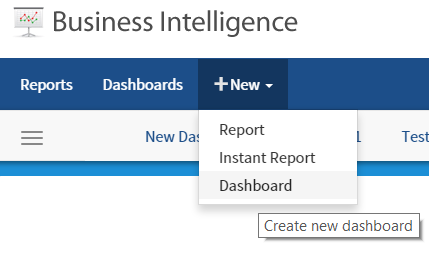
a) Click on the arrow to expose the drop down menu under New
b) Select Dashboard from the Menu drop down. A New Blank Dashboard will be exposed with a blank tile.
##Adding Report Parts to the Dashboard Tile
c) Click on the + sign to add a Report Part to the new Dashboard
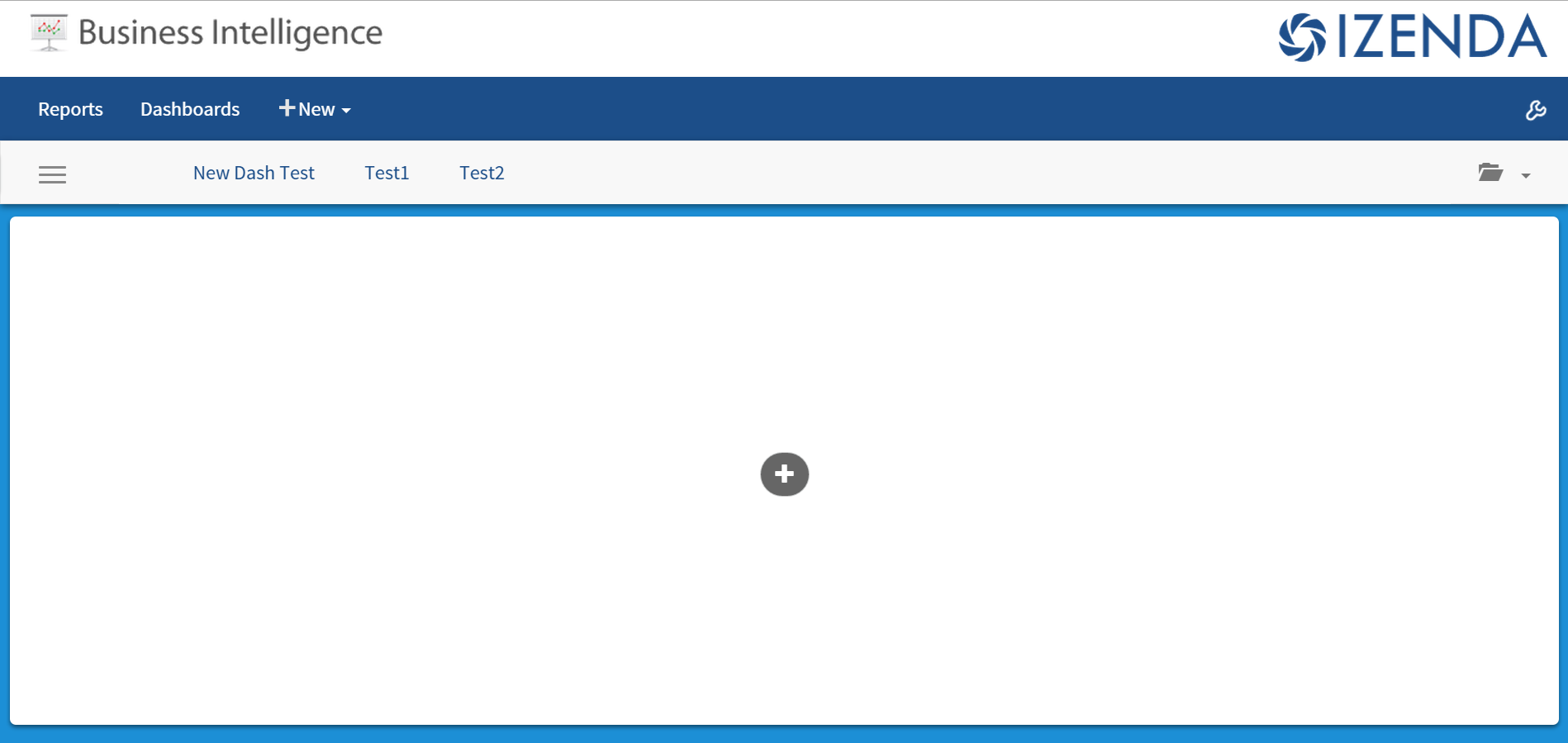
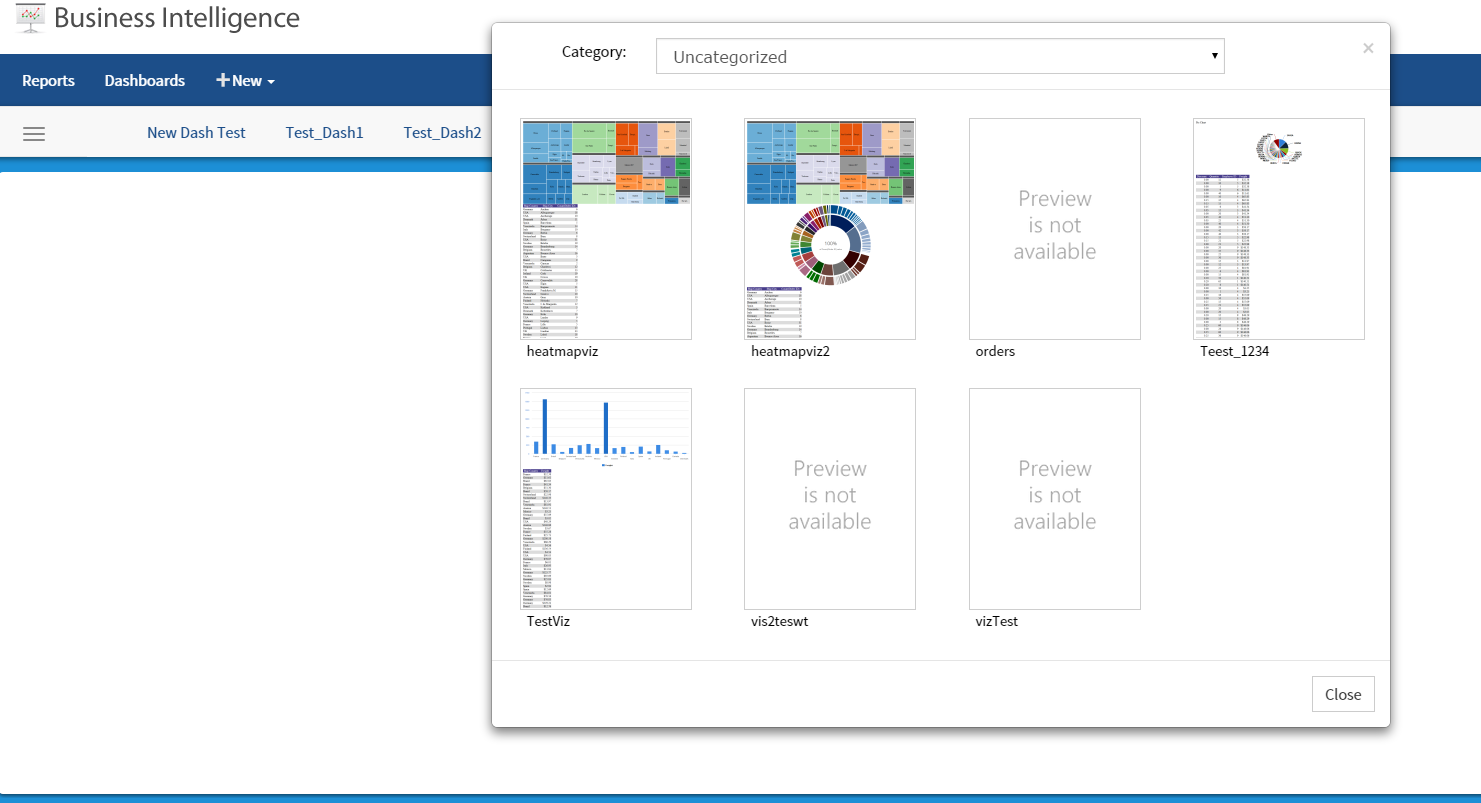
d) The user can now select a report to use in the dashboard.
e) Once a report is selected, the user is presented with a window displaying all of the report parts as options to add to the new dashboard. These can include charts, maps, gauges, summaries or report details.
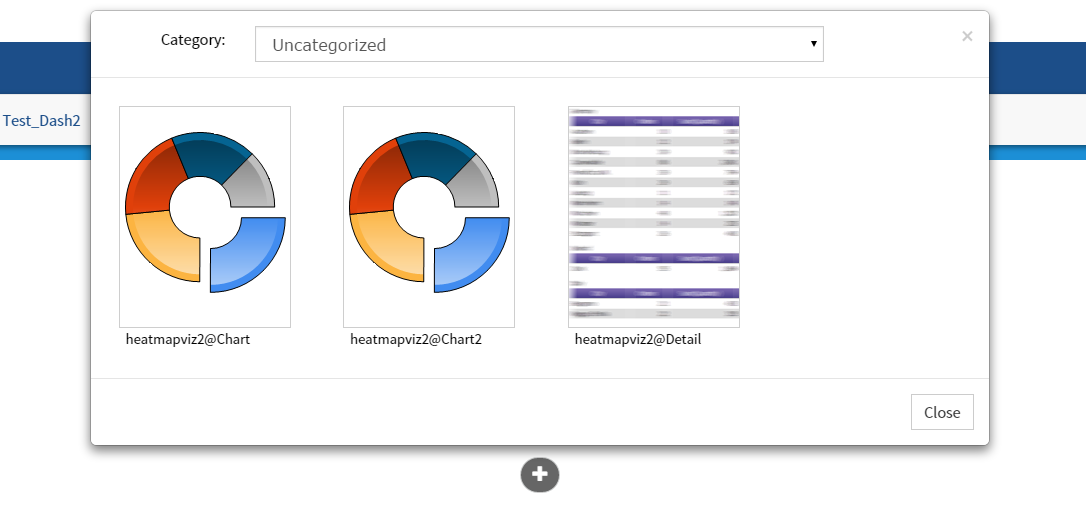
f) The report part selected will then be displayed to the user.
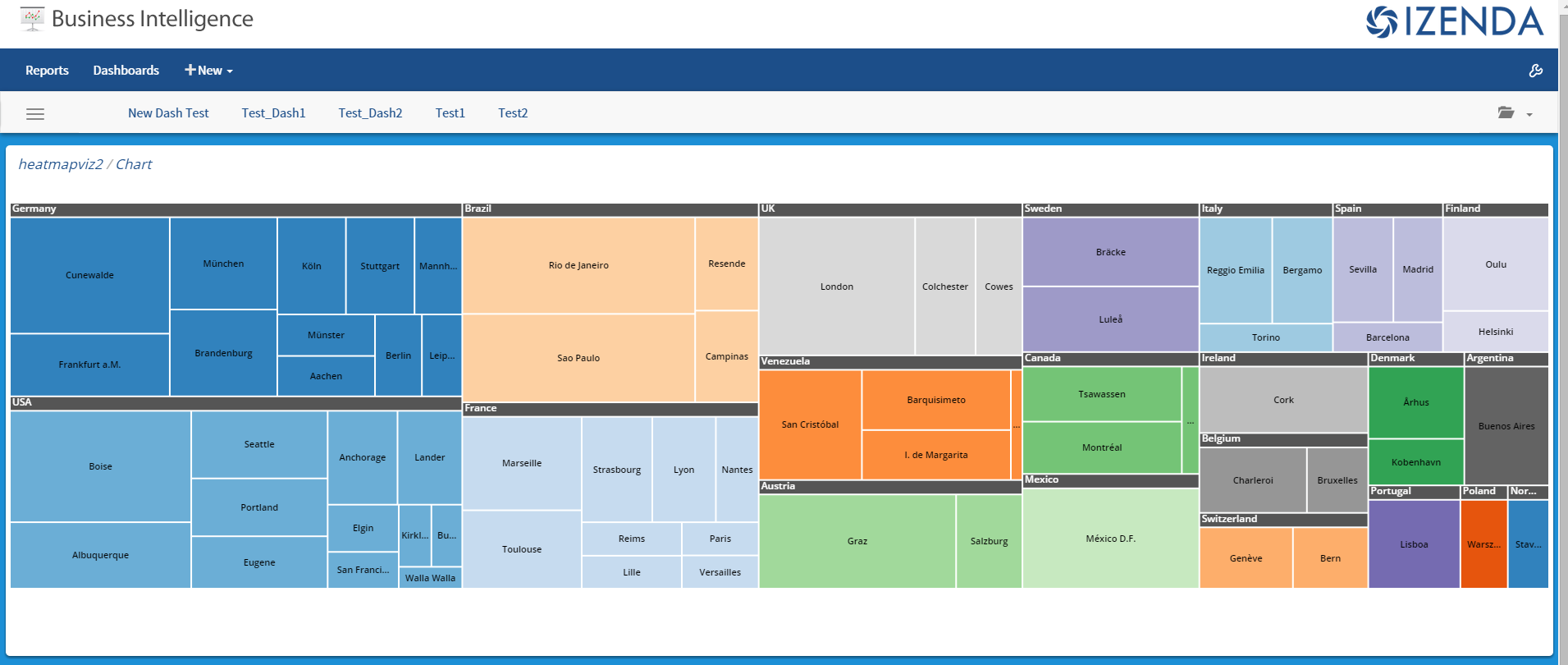
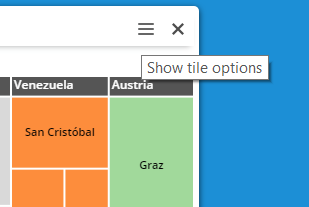
To remove a tile, simply click the “X” in the top right corner of the tile.
To add additional tiles to the dashboard, the user can click on a blank area of the dashboard background.
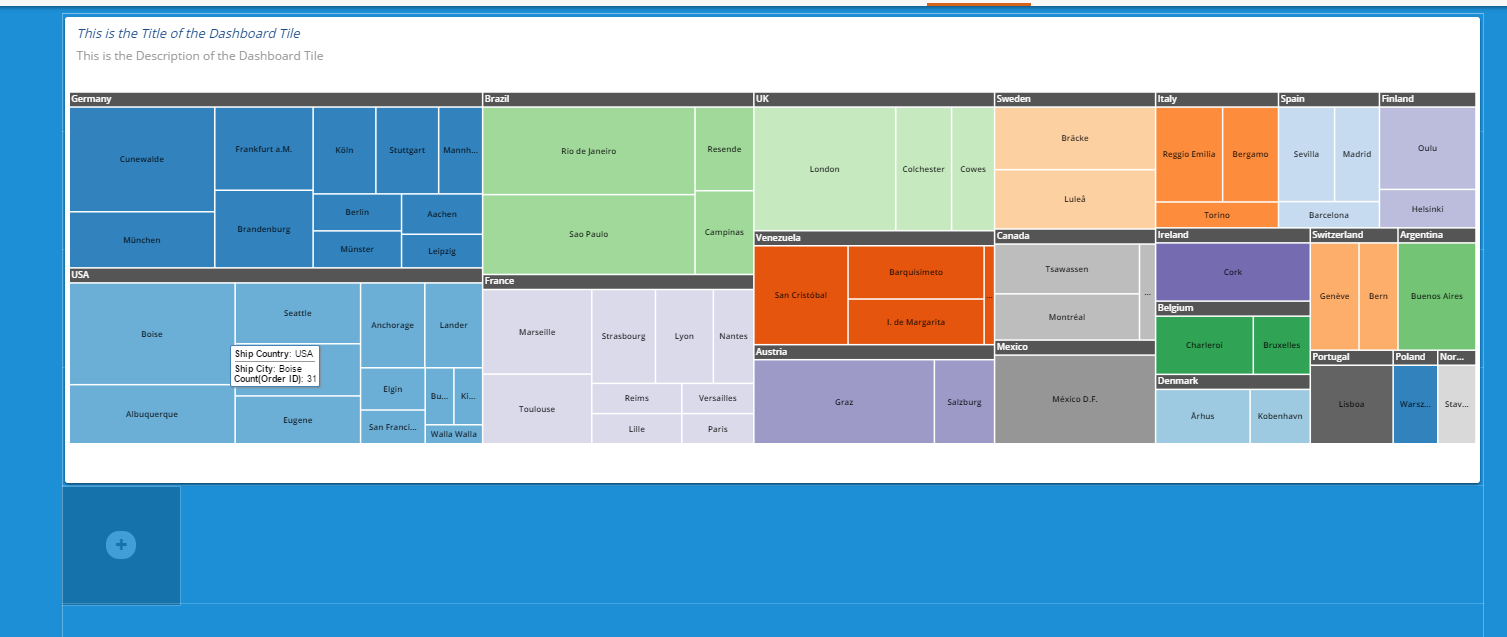
A new blank tile will then be displayed.
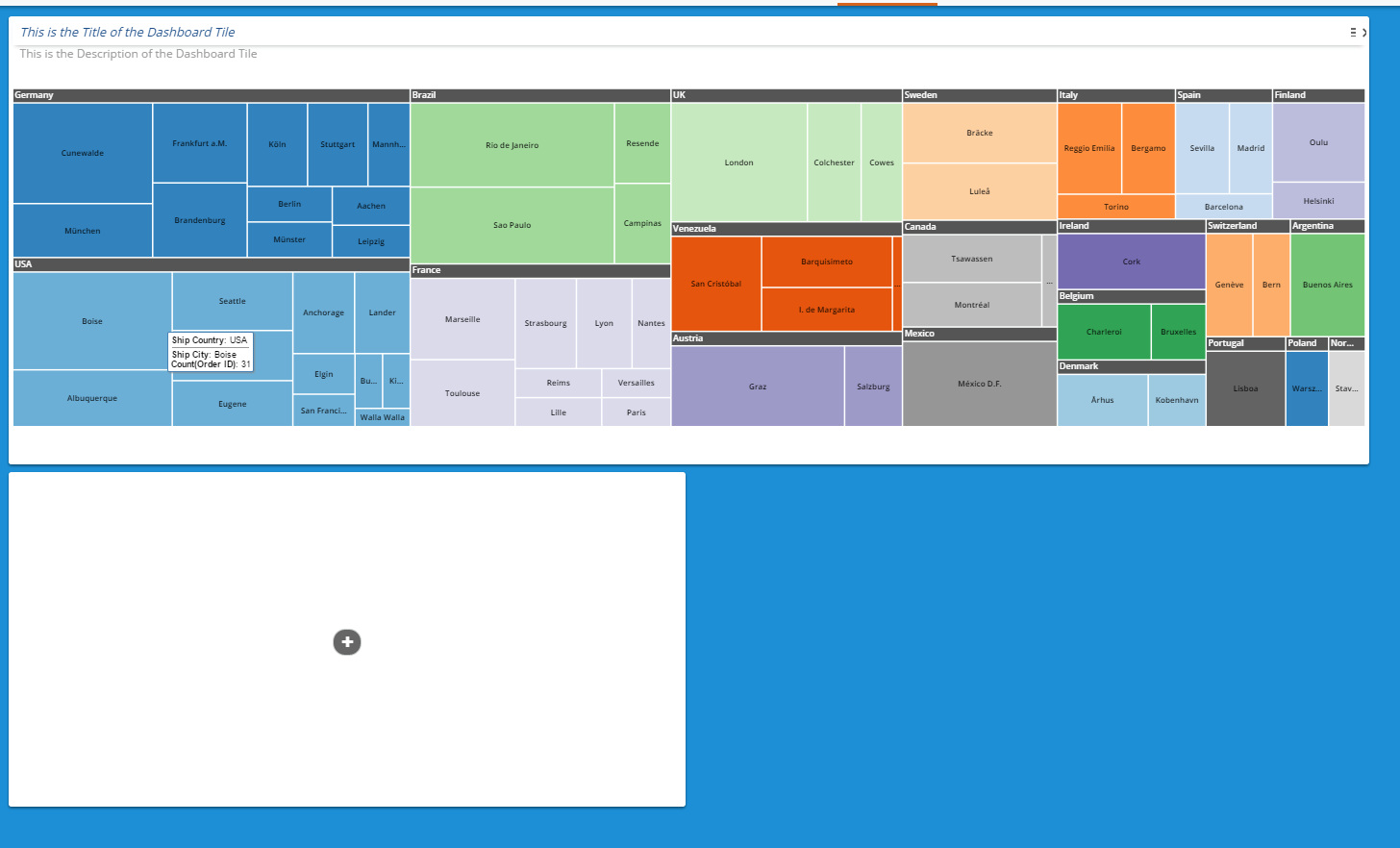
The user can repeat the process to add additional tiles
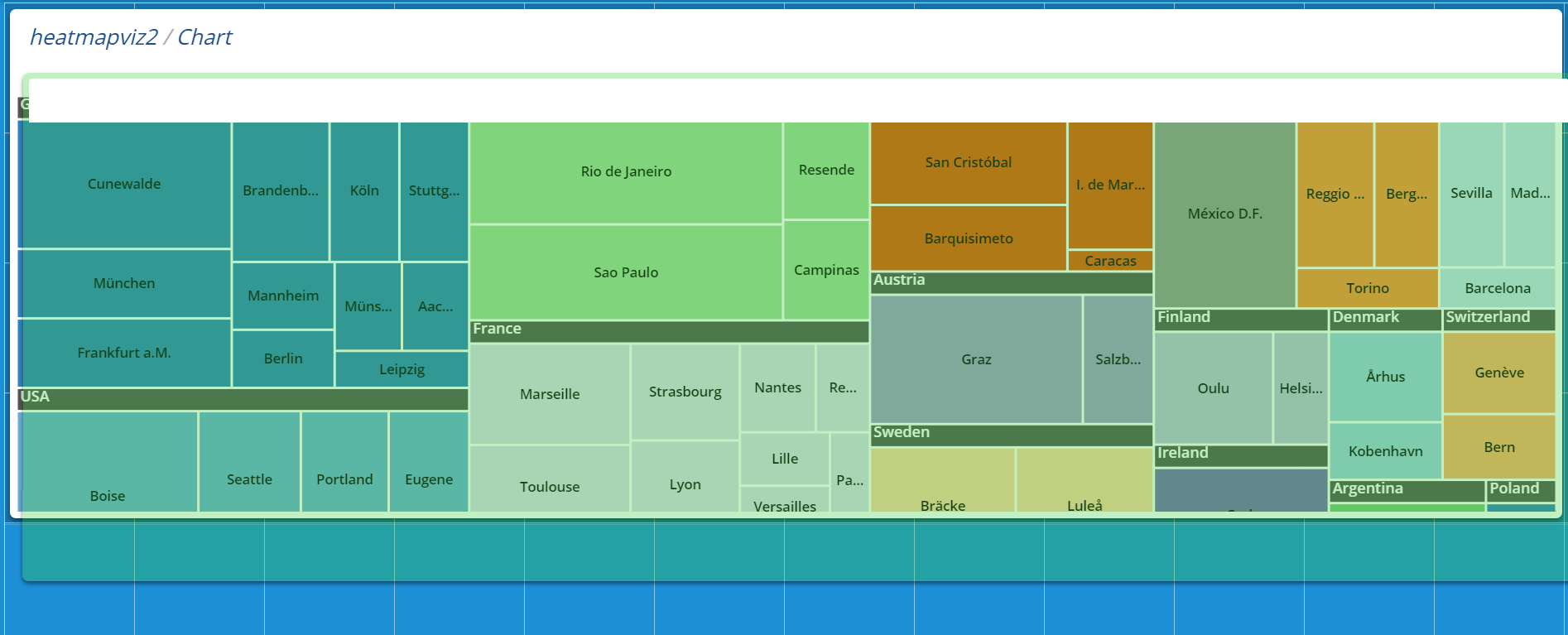
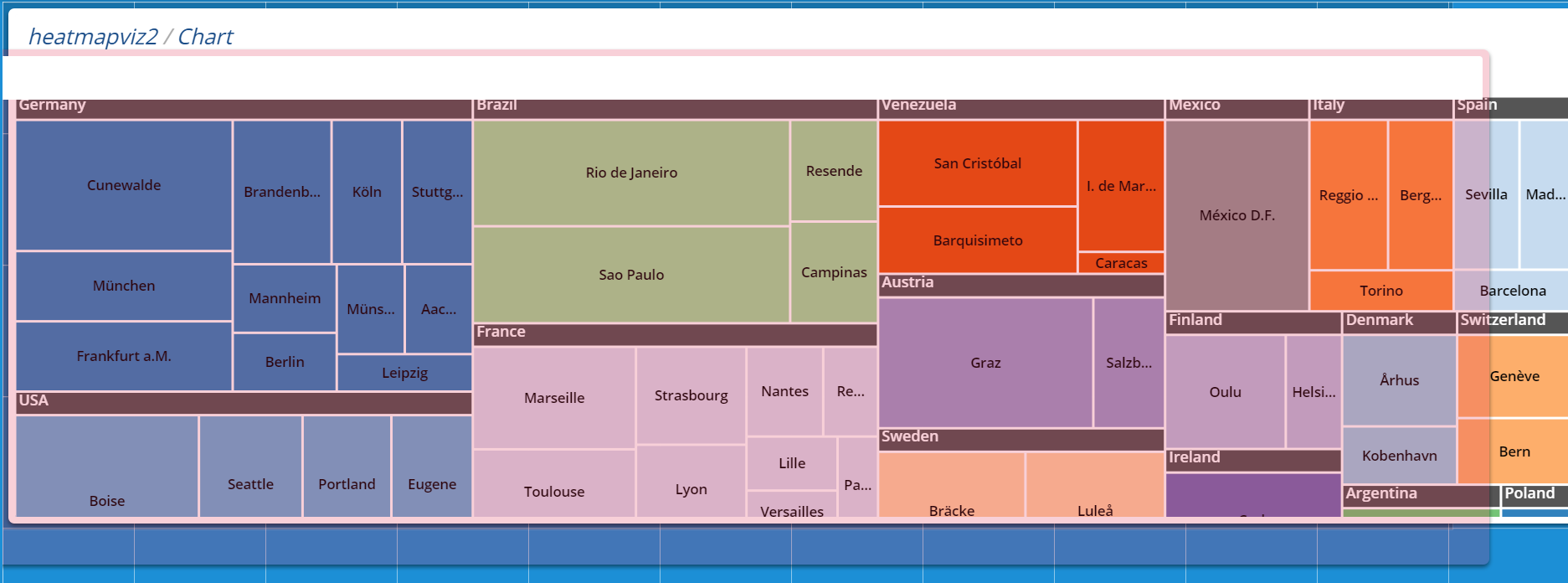
##Moving & Resizing Dashboard Tiles The tiles can be resized by dragging the corners to the desired length or width. Tiles can also be moved around the Dashboard. When the tile shows a green hue, it is positioned correctly and can placed on the grid. If the tile shows a red hue, it is not positioned on the grid properly and cannot be moved.
Properly Positioned Tile for move (green hue)
Improperly Placed Tile for move (red hue)
##Tile Customizations
There are several options available for customizing a tile. These options can be found by clicking on the menu button in the top right corner of the specific tile. The tile will then spin to the reverse side, revealing the additional options.
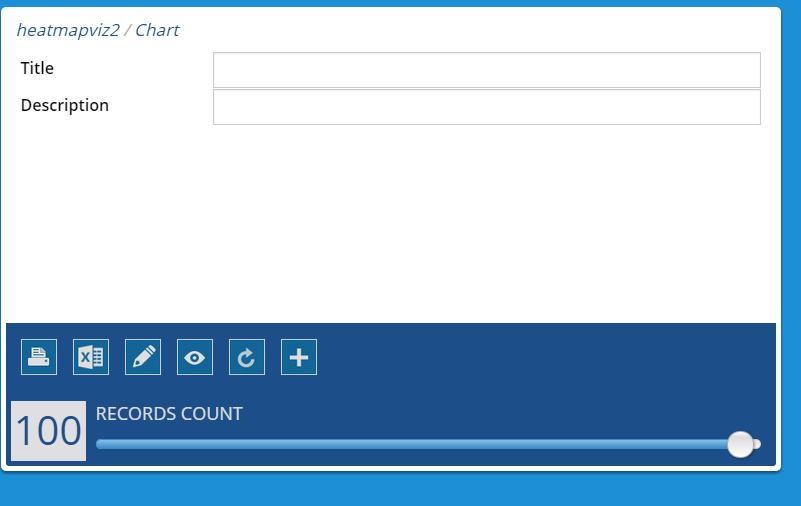
The user can now choose to add a Tile that is displayed on the front of the tile along with a Description that is also displayed on the tile
The additional following menu items are available for use on the back of each dashboard tile


| Appearance | Description |
|---|---|
 |
Print tile report – prints the tile from dashboard |
 |
Export tile report to Excel |
 |
Opens the Report the tile is created from in report editor |
 |
Opens the Report the tile is created from in the report viewer |
 |
Reloads the tile from report |
 |
Add a new report part to tile (change report part selected from original report) |
 |
Change the Number of Records to be displayed in the tile |
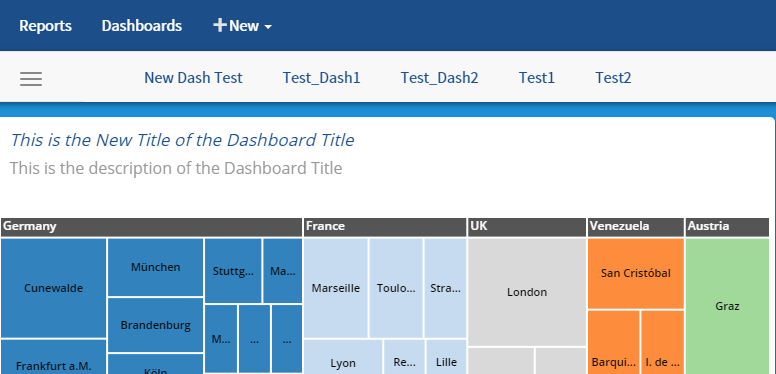
##Viewing an Existing Dashboard
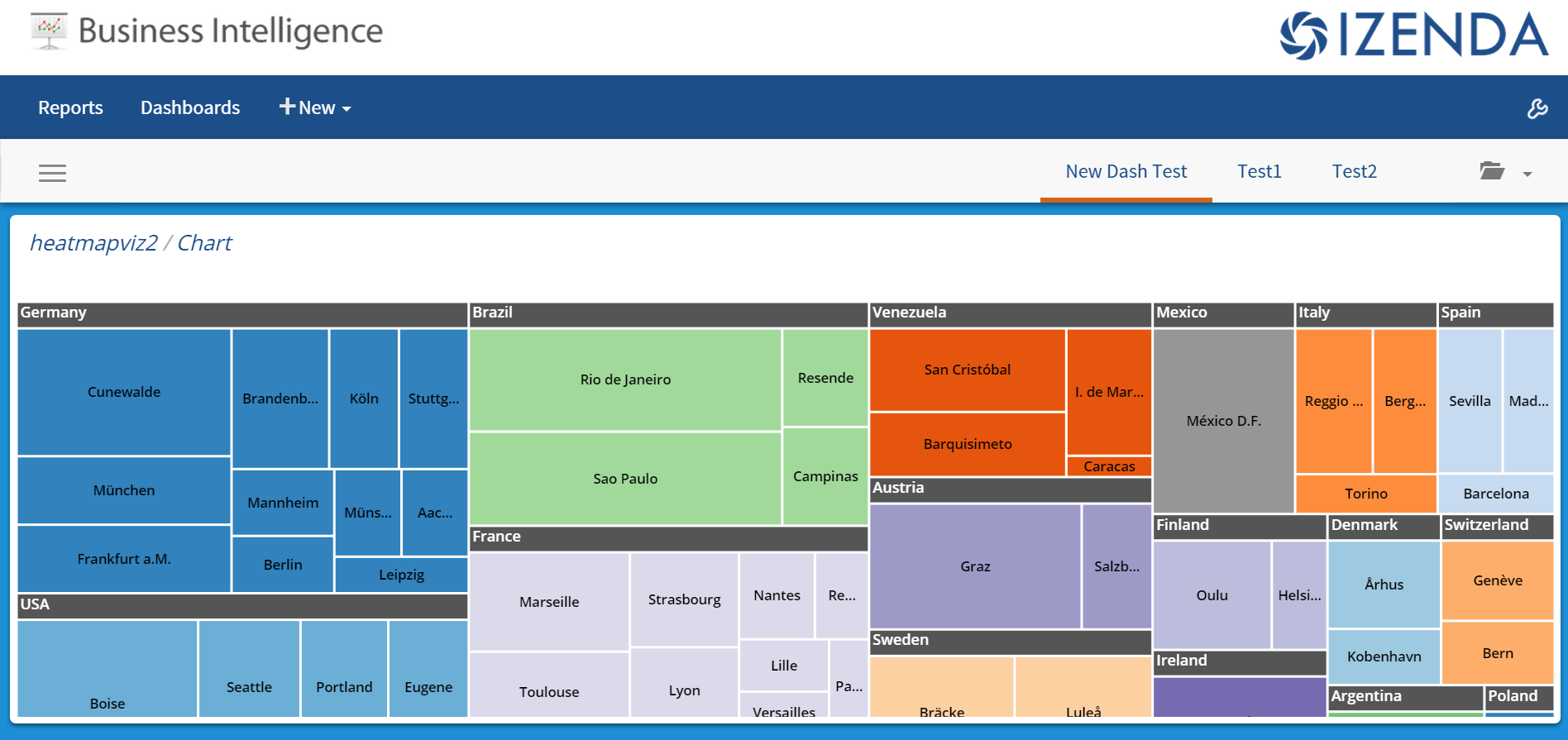
Click on Dashboard at the Top Navigation Bar
Dashboards will be displayed as tabs in the window with the active window highlighted from below
##Main Dashboard Menu
This menu offers the following menu options are available from the menu button in the top left navigation bar when expanded

| Appearance | Description |
|---|---|
 |
Collapse Menu |
 |
Presentation Mode – Allows the user to scroll through the Dashboard tiles in a carousel |
 |
Create a New Dashboard |
 |
|
 |
View Filters – Each report in the dashboard must share the same filter to be displayed |
 |
Share Dashboard with other users |
 |
Schedule Dashboard |
 |
Print Dashboard ⋅⋅Print Dashboard HTML⋅⋅Print Report PDF |
 |
Save Dashboard ⋅⋅Print Dashboard HTML⋅⋅Print Report PDF |
 |
Change Dashboard Background ⋅⋅Print Dashboard HTML⋅⋅Print Report PDF |
#Installation
##Webforms
- Update as normal by downloading and replacing the bin and resources folder
- Download the Webforms Kit and take the Dash.aspx file and copying it to your project.
- In the global, update the dashboard viewer setting to AdHocSettings.DashboardViewer = "Dash.aspx";
##MVC
- Update as normal by downloading and replacing the bin and resources folder
- Download the MVC kit for 6.9 and add the new view to your project
-
Update the IzendaReportingController.cs to include public ActionResult Dash() {
return View(); }
- In the global, update the dashboard viewer setting to AdHocSettings.DashboardViewer = "Dash";