
#Formatting Options
##About
Here we will show you how to easily add a new formatting option to the "Formats" dropdown menu on the Fields tab of the Report Designer. These should be handled in your InitializeReporting() method in your global.asax.
##Example 1 - Bold
In this example, we will quickly add a new format option to the list called "Bold". New formats added this way will be available for every type of data and will not override the existing built-in formats for each type of data. The symbol {0} acts as a token to represent the data that is returned by the query.
AdHocSettings.Formats.Add("Bold", "<strong>{0}</strong>");##Example 2 - Scientific
We can also use an Izenda Format object as an argument. Below is the method of adding a formatting option called "Scientific" to the list of formats. Items added this way can be made available for specific SqlTypeGroups and will not override any of the existing formats.
  SimpleFormat scientificFormat = new SimpleFormat("Scientific", "{0:E}", new SqlTypeGroup[] {SqlTypeGroup.Real, SqlTypeGroup.Numeric});
  AdHocSettings.Formats.Add("Scientific", scientificFormat);
###Results
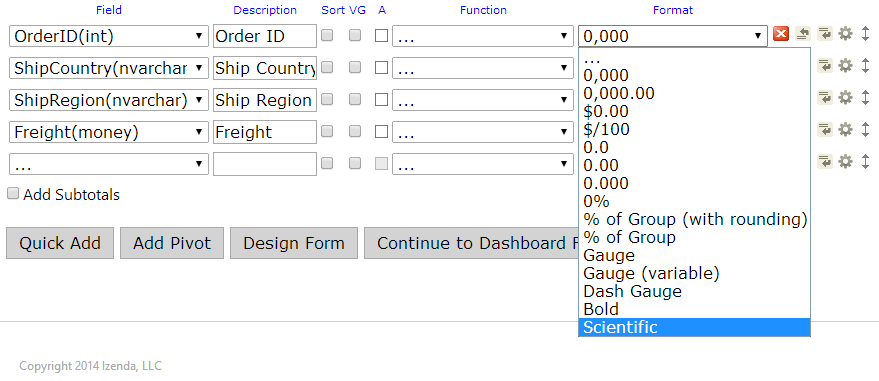
Below are screenshots of the results. The one directly below this text shows the OrderID field (a number field) with both of our new functions listed.
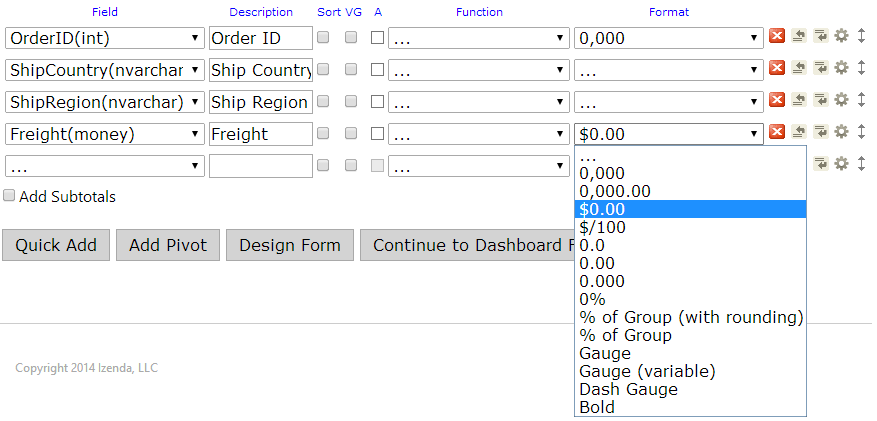
And here is the Freight field formatting options. Notice that we did not specify the "Money" type in our SqlTypeGroups for the Scientific format. Therefore, it is not listed in this dropdown but "Bold" still is.
##Example 3 - International Date Formats
In this example, we show how to set the formats when using an International Date format. This example is for the European Date format.
AdHocSettings.Formats.Add("EuroDate", "{0:dd/MM/yyyy}");You can use this example as a template for other date formats as well.
##Example 4 - Custom Formatters
In this example, we show how to create a custom formatter. This example is for formatting a time period.
You may use the DatesCustomFormatFormatter below as a reference. This will get inserted into your global.asax below your CustomAdHocConfig class definition. You can implement this custom formatter in your InitializeReporting() method by creating a "new" DatesCustomFormatFormatter in the Formats collection.
[Serializable]
public class DatesCustomFormatFormatter : IFormatter {
  public Type GetOutputDataType(DataTable table, int columnNumber, ReportOutputOptions reportOutputOptions, Field field) {
    return typeof(string);
  }

  public object Format(DataTable table, int rowNumber, int columnNumber, Field field, DataTable originalTable, Field nameField) {
    object value = table.Rows[rowNumber][columnNumber];
    if (value == null || Convert.IsDBNull(value))
      return null;
    DateTime dateValue;

    DateTime.TryParse(value.ToString(), out dateValue);
    return dateValue.Day + " Days " + dateValue.Hour + " Hours " + dateValue.Minute + " Minutes " + dateValue.Second + " Seconds";
  }
}

public class DatesCustomFormat : IFormat {
  private SqlTypeGroupCollection allowedTypeGroups = new SqlTypeGroupCollection();
  public SqlTypeGroupCollection AllowedTypeGroups {
    get { return allowedTypeGroups; }
  }

  public SqlTypeGroupCollection DisallowedTypeGroups {
    get { return null; }
  }

  public string Name { get; set; }

  public SqlTypeGroup DefaultFor {
    get { return SqlTypeGroup.None; }
  }

  public bool Visible {
    get { return true; }
  }

  public IFormatter[] CreateFormatters() {
    return new IFormatter[] { new DatesCustomFormatFormatter() };
  }

  public DatesCustomFormat(string name) {
    allowedTypeGroups.Add(SqlTypeGroup.Date);
    allowedTypeGroups.Add(SqlTypeGroup.DateTime);
    Name = name;
  }
}
###Results