
#Formatting Options
##About
Here we will show you how to easily add a new formatting option to the "Formats" dropdown menu on the Fields tab of the Report Designer. These should be handled in your InitializeReporting() method in your global.asax.
##Exporting to Excel
Excel uses internal formatting and attempts to 'guess' what the proper format for a value should be. This means that sometimes, Excel guesses incorrectly and while the correct value might be exported to Excel, the format will be wrong - for example, .623 instead of 62.3%. In this case, it is necessary to specify the data type group exactly using the full constructor to specify data type:
AdHocSettings.Formats.Add("{0:P2}", new SimpleFormat("Percent", "{0:P2}", new SqlTypeGroup[] { SqlTypeGroup.Numeric, SqlTypeGroup.Money, SqlTypeGroup.Real }));##Example 1 - Bold
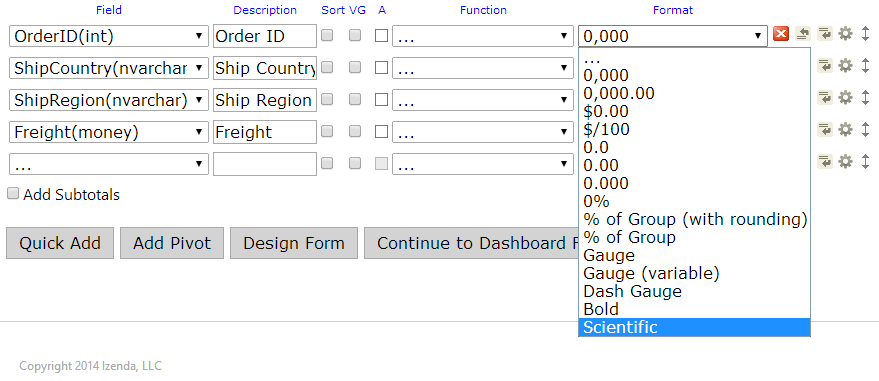
In this example, we will quickly add a new format option to the list called "Bold". New formats added this way will be available for every type of data and will not override the existing built-in formats for each type of data. The symbol {0} acts as a token to represent the data that is returned by the query.
AdHocSettings.Formats.Add("Bold", "<strong>{0}</strong>");##Example 2 - Scientific
We can also use an Izenda Format object as an argument. Below is the method of adding a formatting option called "Scientific" to the list of formats. Items added this way can be made available for specific SqlTypeGroups and will not override any of the existing formats.
  SimpleFormat scientificFormat = new SimpleFormat("Scientific", "{0:E}", new SqlTypeGroup[] {SqlTypeGroup.Real, SqlTypeGroup.Numeric});
  AdHocSettings.Formats.Add("Scientific", scientificFormat);
###Results
Below are screenshots of the results. The one directly below this text shows the OrderID field (a number field) with both of our new functions listed.
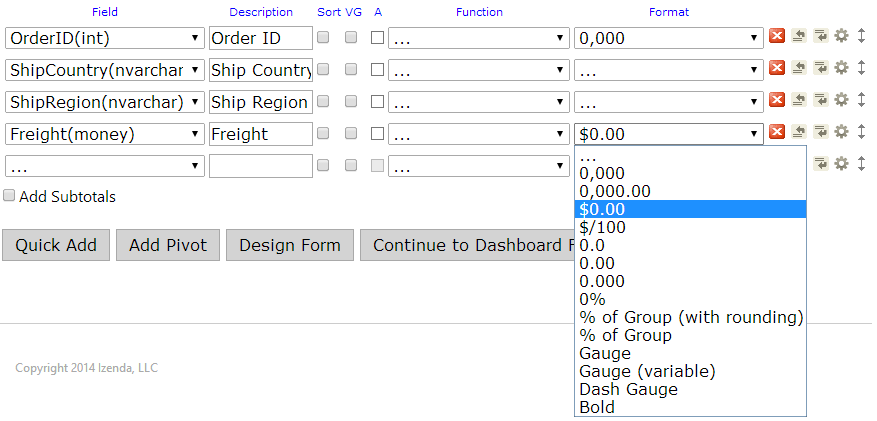
And here is the Freight field formatting options. Notice that we did not specify the "Money" type in our SqlTypeGroups for the Scientific format. Therefore, it is not listed in this dropdown but "Bold" still is.
##Example 3 - International Date Formats
In this example, we show how to set the formats when using an International Date format. This example is for the European Date format.
AdHocSettings.Formats.Add("EuroDate", "{0:dd/MM/yyyy}");You can use this example as a template for other date formats as well.
##Example 4 - Custom Formatters
In this example, we show how to create a custom formatter. This example is for formatting a time period.
You may use the DatesCustomFormatFormatter below as a reference. This will get inserted into your global.asax below your CustomAdHocConfig class definition. You can implement this custom formatter in your InitializeReporting() method by creating a "new" DatesCustomFormatFormatter in the Formats collection.
Note: You can use this as a template and any other format that requires a bit more work than a simple format like in the above examples can be easily implemented by changing the Format method and what allowedTypeGroups are in the collection.
[Serializable]
public class DatesCustomFormatFormatter : BaseFormatter {
  public override Type GetOutputDataType(AdHocDataTable table, int columnNumber, ReportOutputOptions reportOutputOptions, Field field) {
    return typeof(string);
  }

  public override object Format(AdHocDataTable table, int rowNumber, int columnNumber, Field field, AdHocDataTable originalTable, Field nameField) {
    object value = table.Rows[rowNumber][columnNumber];
    if (value == null || Convert.IsDBNull(value))
      return null;
    DateTime dateValue;

    DateTime.TryParse(value.ToString(), out dateValue);
    return dateValue.Day + " Days " + dateValue.Hour + " Hours " + dateValue.Minute + " Minutes " + dateValue.Second + " Seconds";
  }
}

public class DatesCustomFormat : IFormat {
  private SqlTypeGroupCollection allowedTypeGroups = new SqlTypeGroupCollection();
  public SqlTypeGroupCollection AllowedTypeGroups {
    get { return allowedTypeGroups; }
  }

  public SqlTypeGroupCollection DisallowedTypeGroups {
    get { return null; }
  }

  public string Name { get; set; }

  public SqlTypeGroup DefaultFor {
    get { return SqlTypeGroup.None; }
  }

  public bool Visible {
    get { return true; }
  }

  public BaseFormatter[] CreateFormatters() {
    return new BaseFormatter[] { new DatesCustomFormatFormatter() };
  }

  public DatesCustomFormat(string name) {
    allowedTypeGroups.Add(SqlTypeGroup.Date);
    allowedTypeGroups.Add(SqlTypeGroup.DateTime);
    Name = name;
  }
}
You must also adhere to the following two rules:
1) Excel-exportable custom datetime formats must be added to AdHocSettings.Formats as an instance of the SimpleFormat class (or as an instance of custom format class), but NOT as just a string with pattern.
2) The same string pattern of custom datetime format must be passed to the format class constructor in "formatString" parameter, and to AdHocSettings.Formats.Add in "key" parameter.
Please see this sample code:
DateTimeFormatInfo fmt = (new CultureInfo("en-gb")).DateTimeFormat;
string formatStr = "{0:" + fmt.ShortDatePattern + "}";
string formatDesc = fmt.ShortDatePattern + "(ex." + DateTime.Today.ToString(fmt.ShortDatePattern) + ")";
SimpleFormat formatObj = new SimpleFormat(formatDesc, formatStr, new SqlTypeGroup[] { SqlTypeGroup.DateTime });
AdHocSettings.Formats.Add(formatStr, formatObj);
###Results
The results of the above custom formatter are displayed here. The column "Ship Time" is the time difference between the Required Date and the Order Date.

_Note: By default, custom format applied dates are treated as text. If you want to sort the column with custom date format applied as date, then make sure to check the 'Sort' check box in the fields tab which enables SQL level sorting. With 'Sort' check box checked, custom format dates can be sorted as date.